Flex Catalog Mode
Turn any WooCommerce store into a catalog, a wholesale shop, or a quote-led business. Hide prices and purchasing for exactly the right visitors, then turn enquiries into paid orders.
Try it first on the live demo store.
Introduction
Thank you for choosing Flex Catalog Mode. This guide walks through every screen, from the first five-minute setup to developer hooks.
The plugin does two jobs that work well together, and you can use either one on its own.
Catalog mode
Hide prices, Add to cart, the cart and checkout, for the whole store or with rules based on the visitor, the product, the location and the date.
Request a quote
Customers build a quote basket or send an enquiry. You price it, send a branded PDF, and they accept and pay online.
Price protection
Hidden prices are removed from the page source, structured data, the Store API, block data and product feeds, not just hidden with CSS.
Insights
See how many quotes you win, how fast you reply, which products are requested most, and why quotes are lost.
What is in the download
| File | What it is |
|---|---|
flex-catalog-mode.zip | The plugin. Upload this file to WordPress. |
documentation/ | This guide. Open index.html in any browser. It works offline. |
If WordPress says “The package could not be installed. No valid plugins were found”, you uploaded the main CodeCanyon download. Unzip it first and upload flex-catalog-mode.zip.
Screenshots
Taken from the live demo store. Click any image to open it full size.
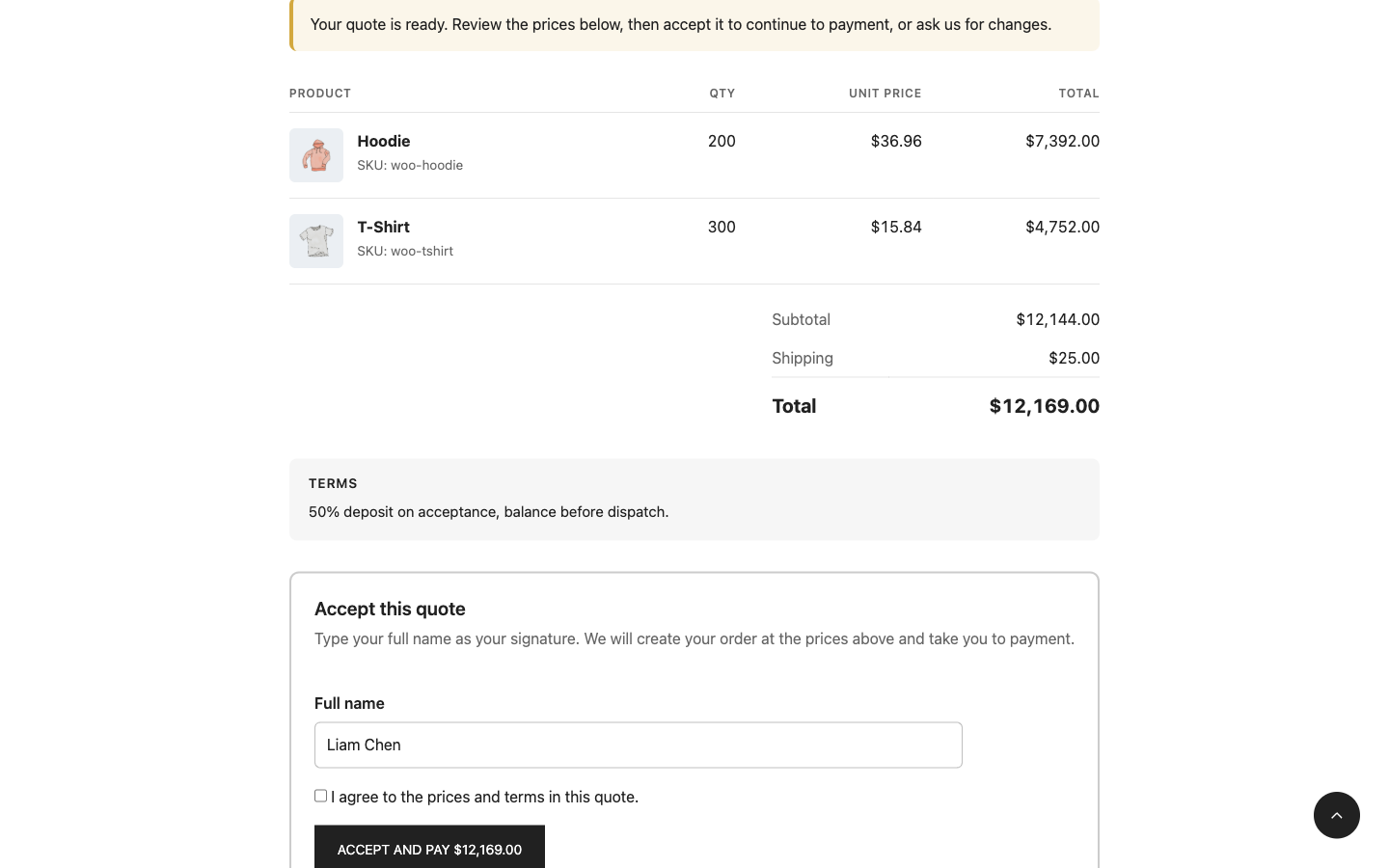
What your customers see
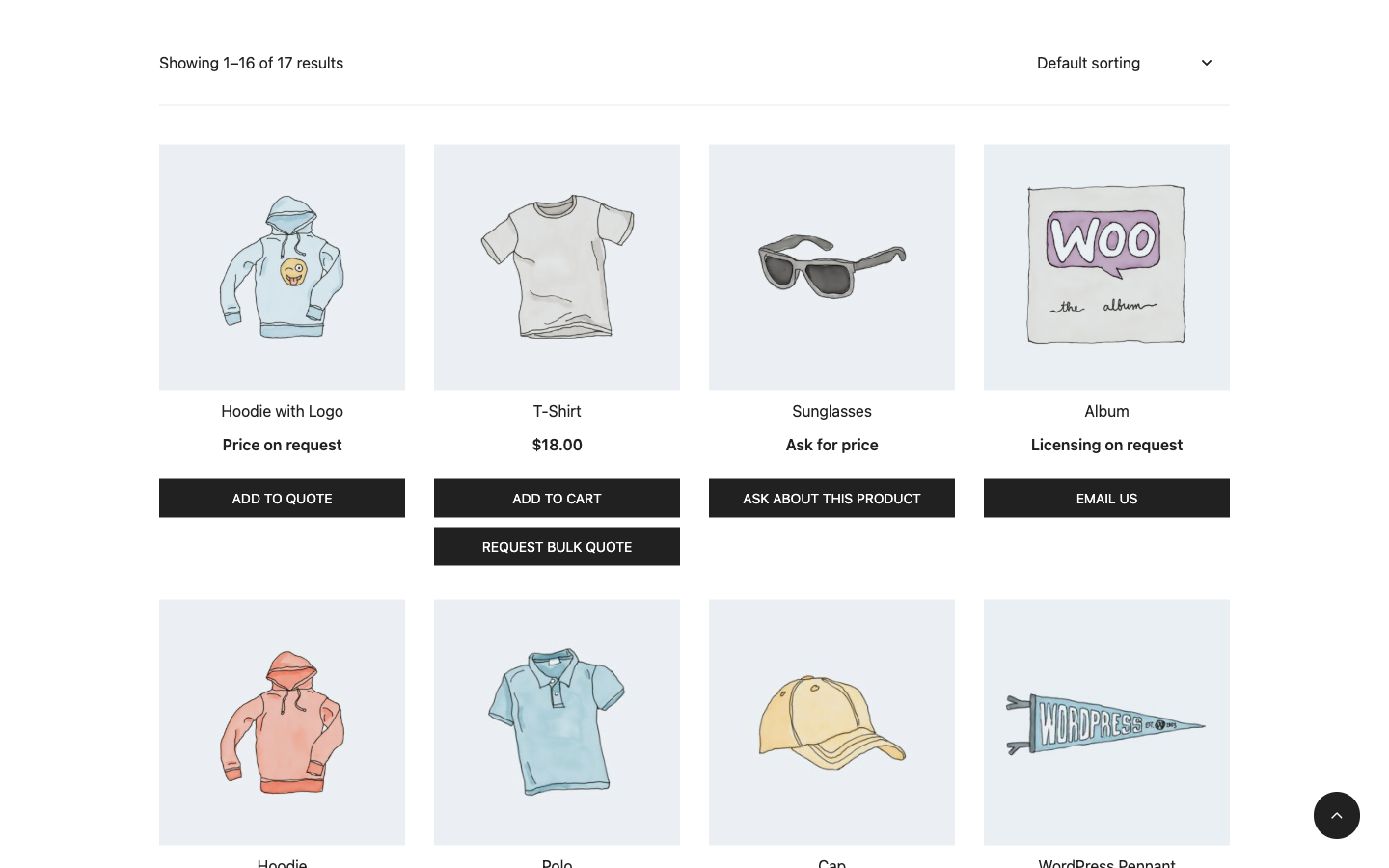
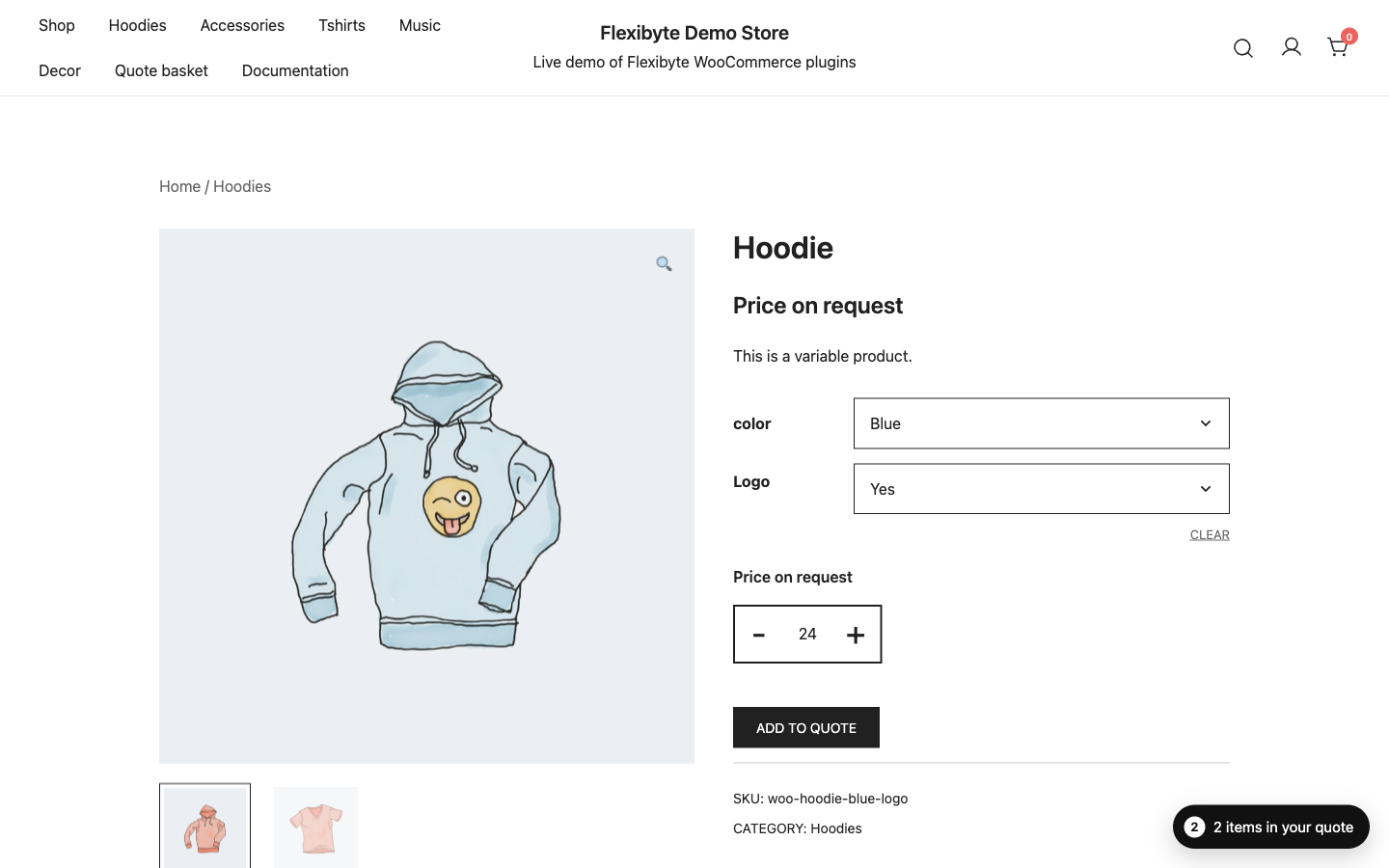
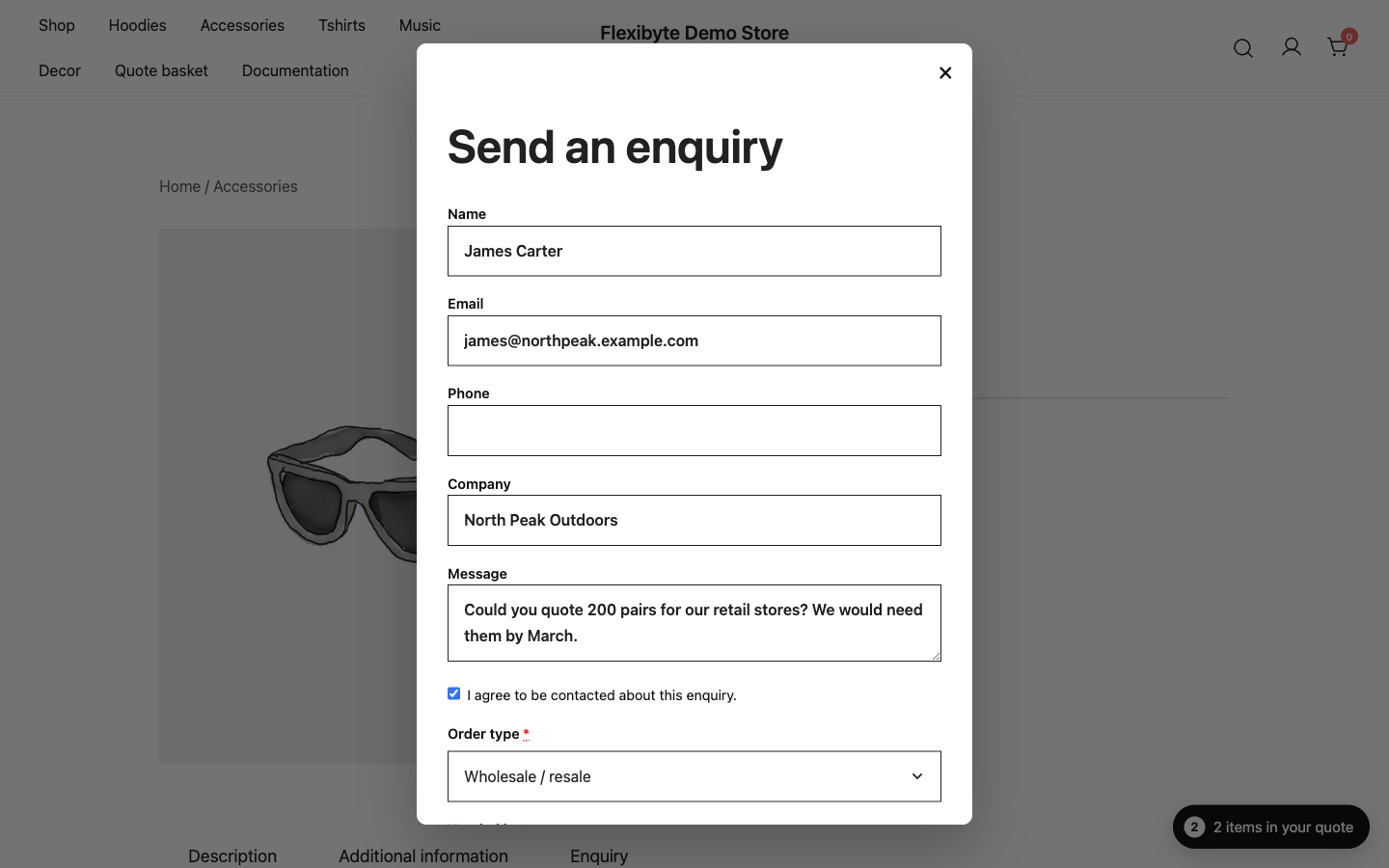
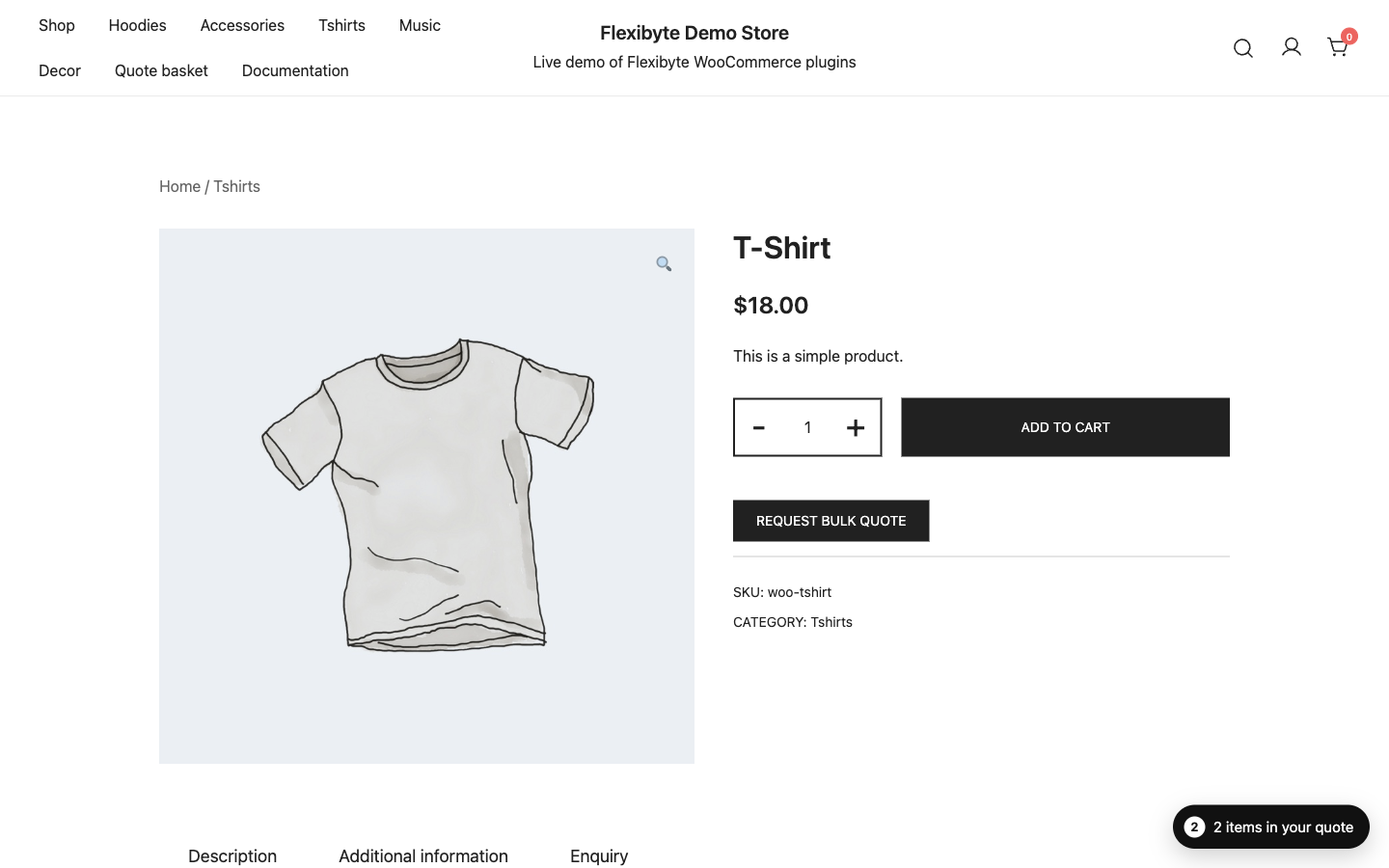
What you see in the admin
Requirements
| Software | Minimum | Tested up to |
|---|---|---|
| WordPress | 6.5 | 7.1 |
| WooCommerce | 8.5 | 11.3 |
| PHP | 8.1 | 8.3 |
The plugin supports WooCommerce High-Performance Order Storage (HPOS) and the Cart and Checkout blocks, and works with classic and block themes. Its storefront styles and scripts only load on shop pages, where the quote popup is used, and on pages that contain one of its shortcodes, blocks or widgets.
If WooCommerce is missing or too old, the plugin stays inactive and shows a notice explaining what to update. Your settings are kept.
Tested with
| Type | Tested with |
|---|---|
| Themes | Twenty Twenty-Five (block theme) and Botiga (classic theme) |
| Form plugins | Contact Form 7 6.1, WPForms Lite 2.0, Ninja Forms 3.16, Formidable Forms 7.1. Gravity Forms is supported through the same connector. |
| Languages | Polylang 3.9. WPML is supported through the included wpml-config.xml and its string translation API. |
| Page builders | Elementor 4.4 |
Installation
From the WordPress dashboard
- Unzip the CodeCanyon download on your computer.
- In WordPress, go to Plugins → Add New Plugin → Upload Plugin.
- Choose
flex-catalog-mode.zipand click Install Now. - Click Activate. You are taken to the setup wizard.
By FTP or SFTP
- Unzip
flex-catalog-mode.zip. You get a folder calledflex-catalog-mode. - Upload that folder to
wp-content/plugins/on your server. - Go to Plugins in WordPress and activate Flex Catalog Mode.
Where to find it
Everything lives under the Flex Catalog menu in the dashboard:
| Menu item | What it does |
|---|---|
| Catalog mode | Settings, rules and the Shield self-check, in three tabs. |
| Quotes | The quotes inbox. A badge shows how many requests are waiting for you. |
| Quote settings | Business details, form fields, PDF design and the quote popup. |
| Insights | Quote performance reports. |
| Catalog setup | The setup wizard. You can run it again at any time. |
| License | Activate your purchase code to get one-click updates. |
License and updates
Activating your purchase code turns on one-click updates from the normal Dashboard → Updates and Plugins screens. The plugin works fully without activation; only automatic updates need it.
- Find your purchase code in your Envato account under Downloads. Click Download next to Flex Catalog Mode and choose License certificate & purchase code. It looks like
1a2b3c4d-1a2b-1a2b-1a2b-1a2b3c4d5e6f. - Go to Flex Catalog → License, paste the code and click Activate.
- The screen shows the buyer, license type, support end date and the site the code is linked to.
Sites per license
One regular or extended license covers one live site. Staging and development copies do not count, and can be activated with the same code. These are recognised automatically:
localhostand private network addresses such as192.168.x.xor10.x.x.x;- domains ending in
.local,.test,.localhost,.exampleor.invalid; - subdomains starting with
staging.,stage.ordev.; - staging domains from WP Engine, Kinsta, Flywheel, Cloudways, InstaWP and TasteWP.
Moving to a new domain
Click Deactivate on the old site first, then activate on the new one. Deleting the plugin also releases the license. If the old site is gone, the License screen on the new site tells you the code is in use elsewhere; open a support ticket and we will release it.
If you change the domain of the same site, the License screen shows “This license was activated for a different address” and asks you to activate again.
When support expires
Updates keep working after your support period ends. The License screen shows a Renew support link so you can extend it on CodeCanyon if you need help from us.
On multisite, the license is stored once for the whole network and linked to the main site address.
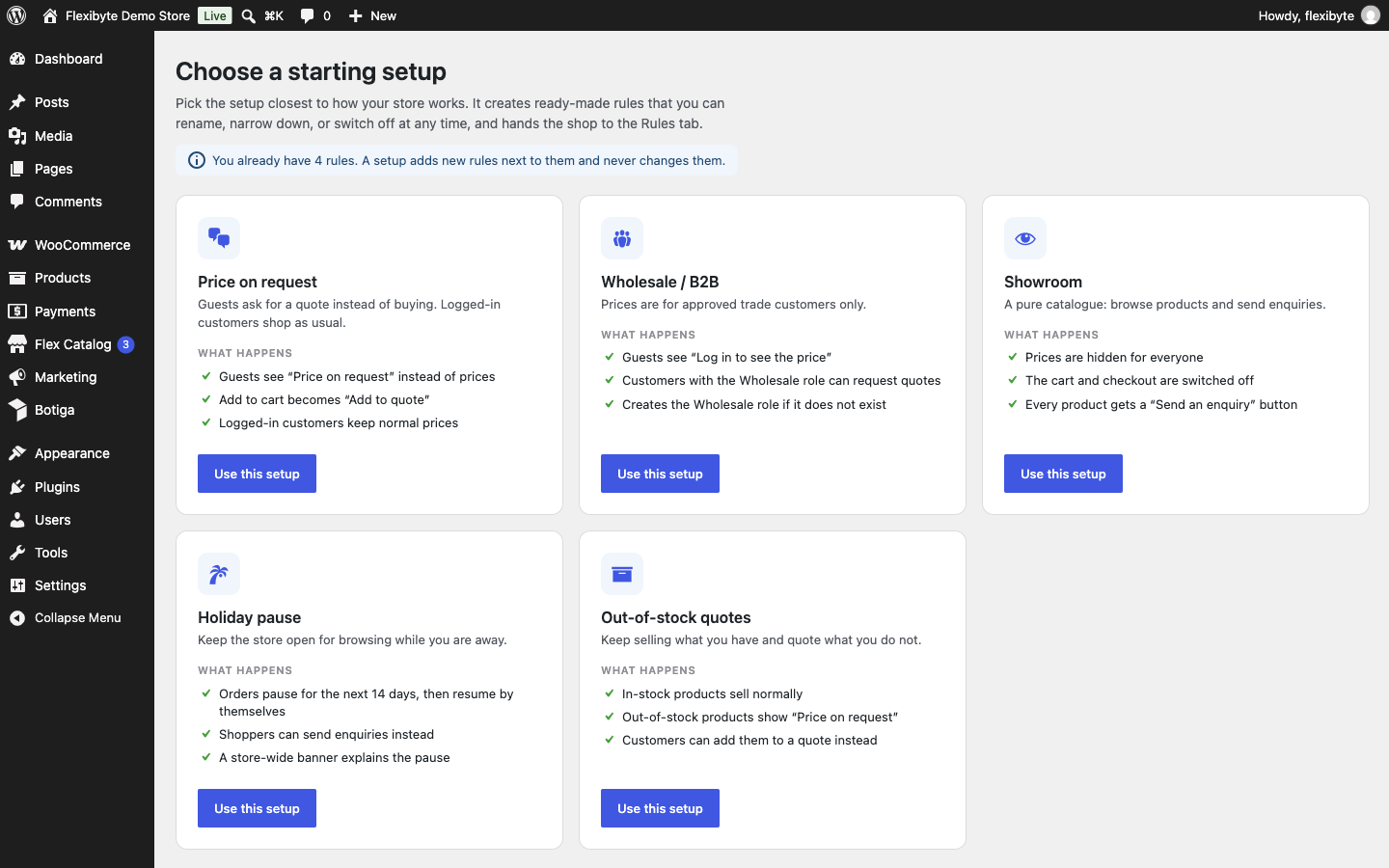
Setup wizard and presets
The wizard opens after activation and can be run again from Flex Catalog → Catalog setup. Pick the preset closest to your business. Each preset adds normal rules that you can edit afterwards, turns the plugin on, and turns off Use these settings so the new rules decide. Rules you already have are kept.
| Preset | What it sets up |
|---|---|
| Price on request | Guests see “Price on request” and an Add to quote button instead of the price and Add to cart. Logged-in customers shop normally. |
| Wholesale / B2B | Creates a Wholesale user role. Guests see “Price on request” and a Log in to see the price button. Wholesale customers see prices and an Add to quote button. Other logged-in customers shop normally. |
| Showroom | A pure catalog for everyone: no prices, no purchasing, no cart, and a Send an enquiry button on every product. |
| Holiday pause | For the next 14 days: prices hidden, purchasing and the cart turned off, an enquiry button on every product, and a store notice. The rule stops by itself when the dates pass. |
| Out-of-stock quotes | Keeps the normal shop, but out-of-stock products show “Price on request” and an Add to quote button. |
Catalog settings
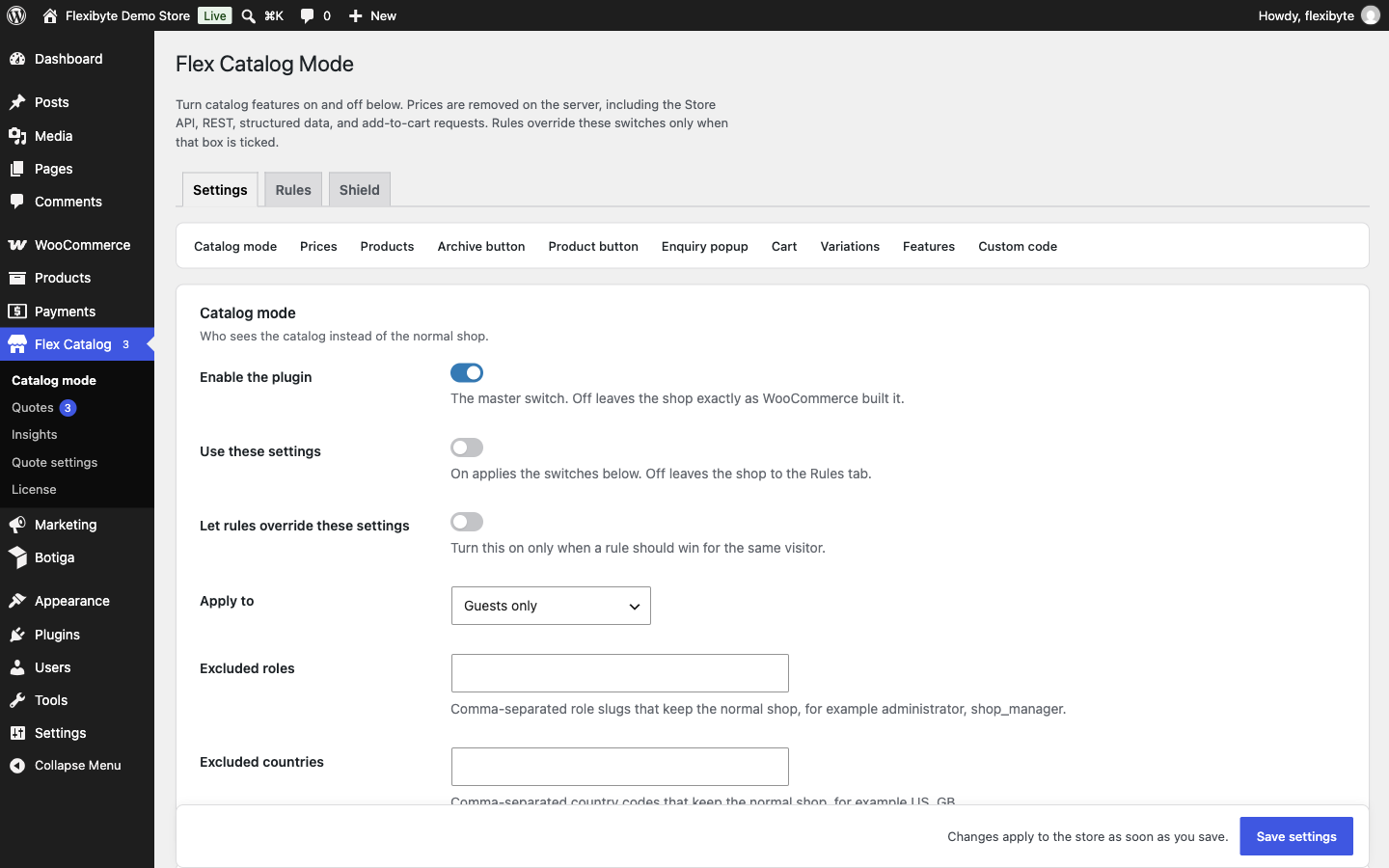
Go to Flex Catalog → Catalog mode → Settings. The settings give you a simple, store-wide catalog mode without writing any rules.
Settings or rules?
- Enable the plugin is the master switch. When it is off, the shop is exactly as WooCommerce built it.
- Use these settings applies the switches on this screen. For visitors and products they cover, these settings decide what happens.
- Everywhere else, rules decide. If no rule matches either, the product is sold normally.
- Let rules override these settings makes rules decide for everyone, and the settings on this screen are ignored.
| Section | What you control |
|---|---|
| Catalog mode | Who sees the catalog: everyone, guests only, or logged-in customers only. Roles and countries that keep the normal shop. |
| Prices and purchasing | Remove the price, the text shown instead (for example “Price on request”), and remove Add to cart. Optional extras: a CSS clean-up for themes that print their own price markup, and masking hidden prices in emails and My Account. |
| Products in catalog mode | All products, all except a list, or only a list of product and category IDs. |
| Archive button | Replace the Add to cart button on shop and category pages with a button that opens the product page or a custom URL. |
| Product button | A button on the single product page that opens the enquiry popup, adds the product to the quote basket, or opens a custom URL. It can replace Add to cart, sit beside it, or go before or after the product summary. |
| Enquiry popup | The popup form opened by the product button: title, size, an optional form plugin shortcode, and whether an Enquiry tab also shows on the product. |
| Cart and checkout | Redirect the cart and checkout pages while buying is turned off (payment links for accepted quotes keep working). Or keep the cart and use it as an enquiry cart. |
| Variations | Show variable products with the normal dropdowns, or as a table of variations with image, SKU and name. |
| Feature switches | Turn whole modules on or off: the quote basket, inbox and checkout; PDF download; the mini quote basket; insights; webhooks and connectors. Data is kept when a module is off. |
| Custom code | Small CSS and JavaScript tweaks without a child theme. |
| Data | Delete all data on uninstall. Off by default. See Data and uninstall. |
For a whole-store catalog, the settings alone are enough. Use rules when different visitors or products need different treatment.
Rules
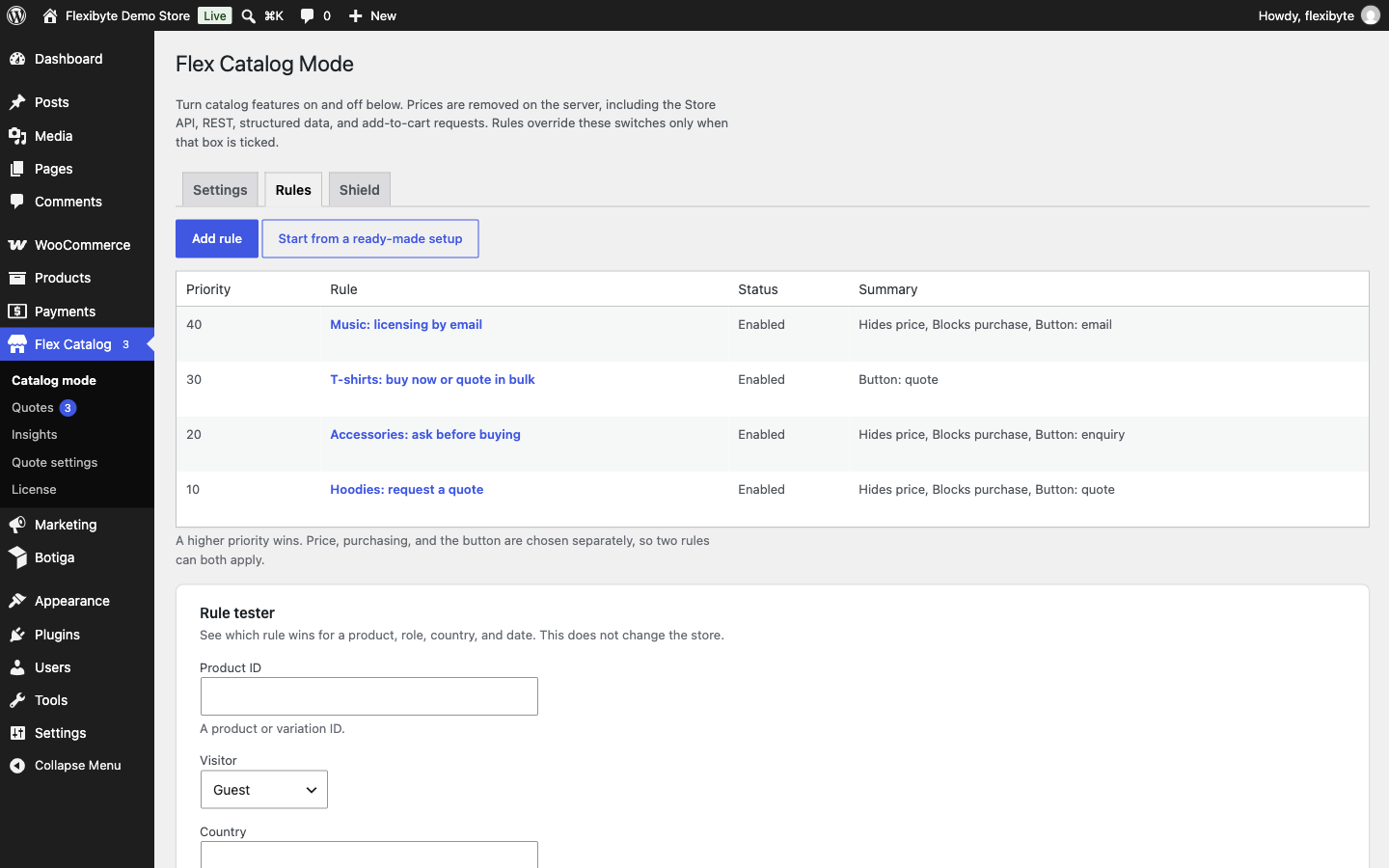
Rules are the heart of the plugin. Go to Flex Catalog → Catalog mode → Rules. Each rule says who is affected, on which products, where and when, and what happens.
Each action is decided separately. For the price, purchasing and the button, the matching rule with the highest priority number wins. So a high-priority rule can hide the price while a lower one still supplies the button. Hiding the cart and removing price sorting apply if any matching rule asks for them.
From the list you can edit, duplicate, disable and delete rules, and use Up and Down to change their priority. To back up rules, use wp flexcm rules export.
Conditions
Conditions are arranged in groups. A group matches when every condition in it matches, and the rule matches when any group matches. Use Add OR group for alternatives, for example “wholesale customers” or “anyone with an @partner.com email”. A rule with no conditions matches everyone and every product.
| Group | Conditions |
|---|---|
| Who | Everyone · Guests · Logged-in customers · User roles · Specific customers · Email domain · Customer meta · Has bought before · Has never bought |
| What | All products · Products · Variations · Categories (optionally with child categories) · Tags · Brands · Product type · Stock status · Price range · On sale · Has no price · Attribute |
| Where | Country (from the customer's address or WooCommerce geolocation) · Currency · Language (WPML or Polylang) |
| Page | Where the product is shown: shop (shop and category pages), single (product pages), search (search results), other (anywhere else) or any. |
Actions and buttons
| Action | Options |
|---|---|
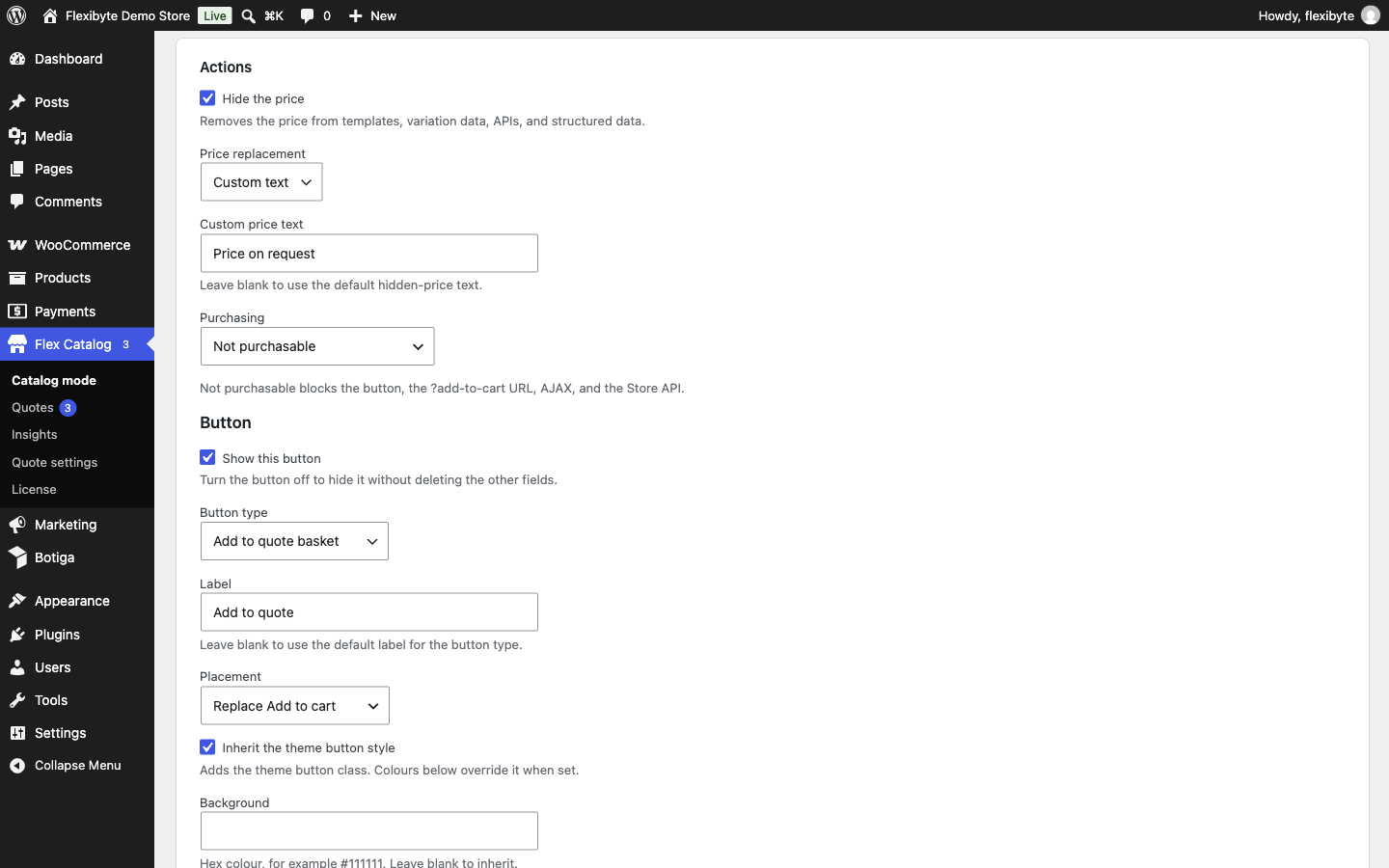
| Hide the price | Remove the price everywhere it appears. |
| Instead of the price | Show nothing, show custom text, or show the button label. |
| Purchasing | Leave WooCommerce in charge, make the product not purchasable, or force it to be purchasable. |
| Button | A button that adds the product to the quote basket, opens the enquiry popup, or links to a URL, the login or registration page, a WhatsApp chat, a phone number, or an email. It can replace Add to cart or sit beside it, and has its own label, colours (or the theme's button style), corner radius, size and icon. Email and WhatsApp messages can include placeholders such as the product name and link. |
| Cart and checkout | Hide the cart and checkout for visitors matched by this rule. |
| Sorting | Remove “Sort by price” from the shop when prices are hidden. |
Schedules
Any rule can run only at certain times, using your site's time zone from Settings → General:
- Dates: a start and end date, optionally repeating every year (useful for holidays).
- Times: a daily time window, for example outside business hours. Windows that cross midnight are supported.
- Weekdays: for example weekends only.
When a scheduled rule hides the cart, you can show a store notice banner with your own message, set under Quote settings → General → Store notice while the cart is hidden.
Rule tester and store preview
The Rule tester on the Rules tab takes a product or variation ID, a role, a country, a page and a date, and shows which rule wins and what the visitor would see. It does not change the store.
On the front end, administrators get a View store as… menu in the toolbar. Enter a role (or guest), a country code and a date, then click Apply to browse the real store as that visitor. Click Clear to go back. The preview only affects your own session.
Per-product override
Every product has a Flex Catalog Mode option in the product editor, under Product data → General:
- Use rules (default): the rules decide.
- Force catalog mode: always hide the price and purchasing for this product.
- Force normal shop: always sell this product normally, whatever the rules say.
Variable products also have the option on each variation, so one size can be sold normally while another is quote-only.
Shield
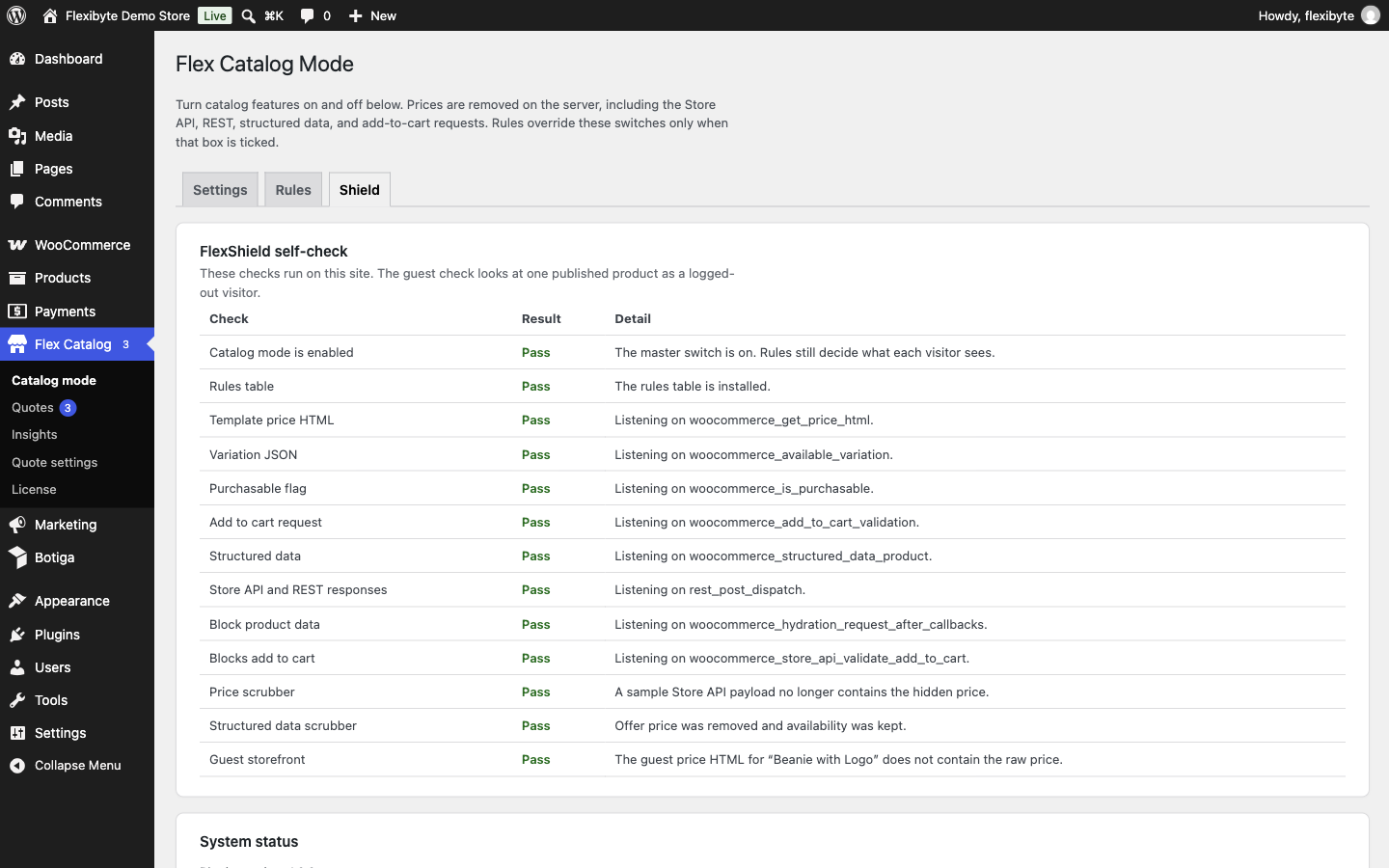
Many catalog mode plugins only hide prices with CSS, so anyone can still read them in the page source or the store's API. Flex Catalog Mode removes hidden prices from:
- product templates, price HTML and variation data;
- structured data (Google rich results keep availability but lose the price);
- the WooCommerce Store API and REST API, and the data used by product blocks;
- Add to cart requests, including direct links like
?add-to-cart=123and block cart requests; - product feeds for Facebook for WooCommerce and Google Listings & Ads, which are evaluated as a guest.
The Catalog mode → Shield tab runs a self-check and shows a pass or fail for each layer, including a live check of your storefront as a guest. Run it after changing themes or installing a plugin that changes product pages.
From the command line, wp flexcm shield lists each protection hook and whether it is active.
How quotes work
- The customer asks. They add products to a quote basket and send it, or fill in the enquiry form on a product. They can add a note and a target price per product.
- You are notified. The request appears in Flex Catalog → Quotes, and you get an email. The customer gets a confirmation.
- You price it. Set prices, discounts, shipping, fees and terms, then click Send quote. The customer gets an email with a link and an optional PDF.
- The customer decides. On their private quote page they can accept and pay, ask for changes, or decline with a reason.
- It becomes an order. Accepting creates a normal WooCommerce order at the quoted prices and takes the customer to payment. The quote is marked Converted and linked to the order.
Logged-in customers can see all their quotes under My Account → Quotes. Guests use the private link in their emails.
Basket, popup and enquiry form
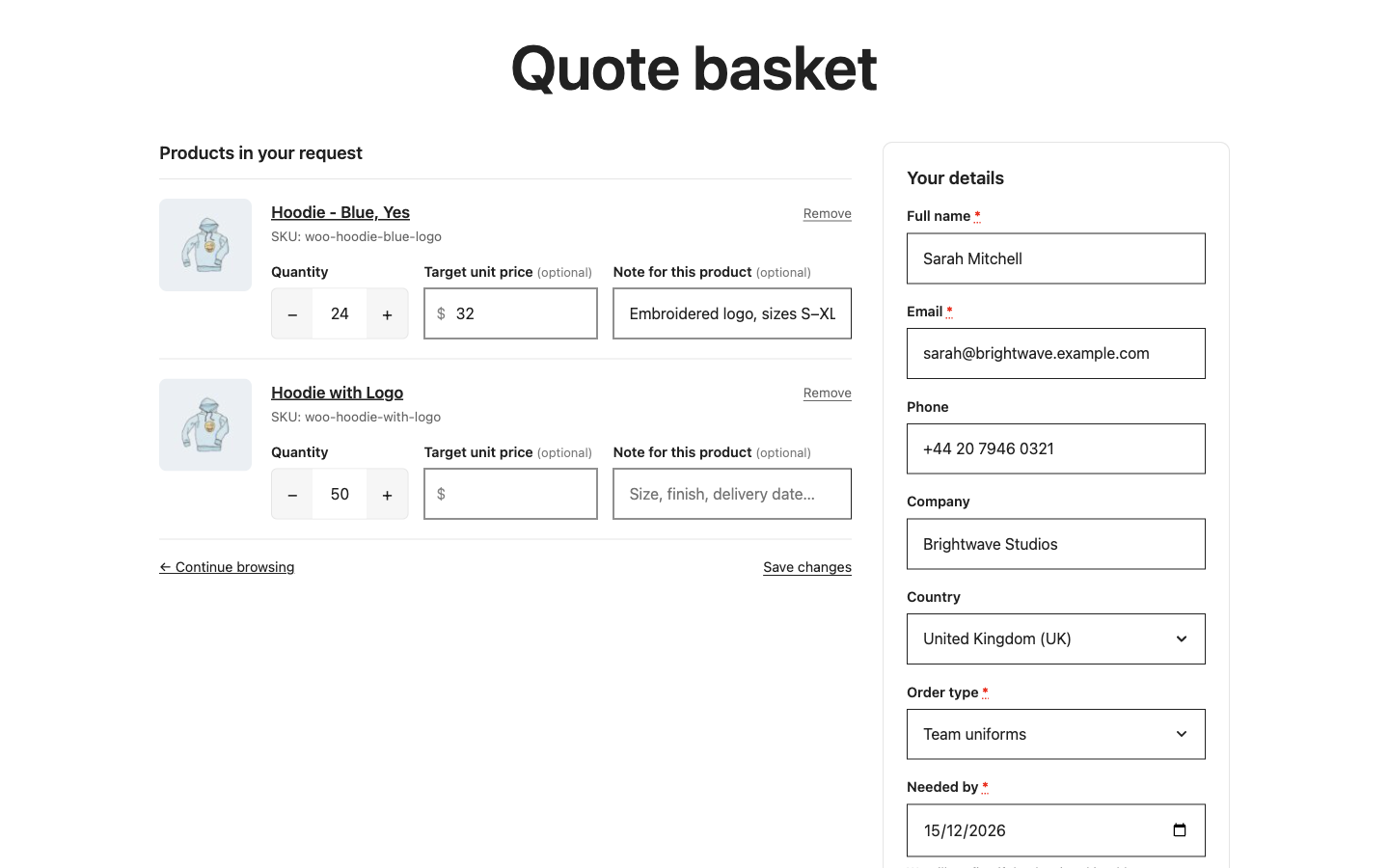
Quote basket
The plugin creates a Quote basket page on activation. Customers can change quantities, add a note and a target price for each product, and fill in their details. You can choose a different page by placing the [flexcm_quote_basket] shortcode or the Quote basket block on it.
A floating mini basket shows the number of items in the corner of the store. Turn it off under Catalog mode → Settings → Feature switches.
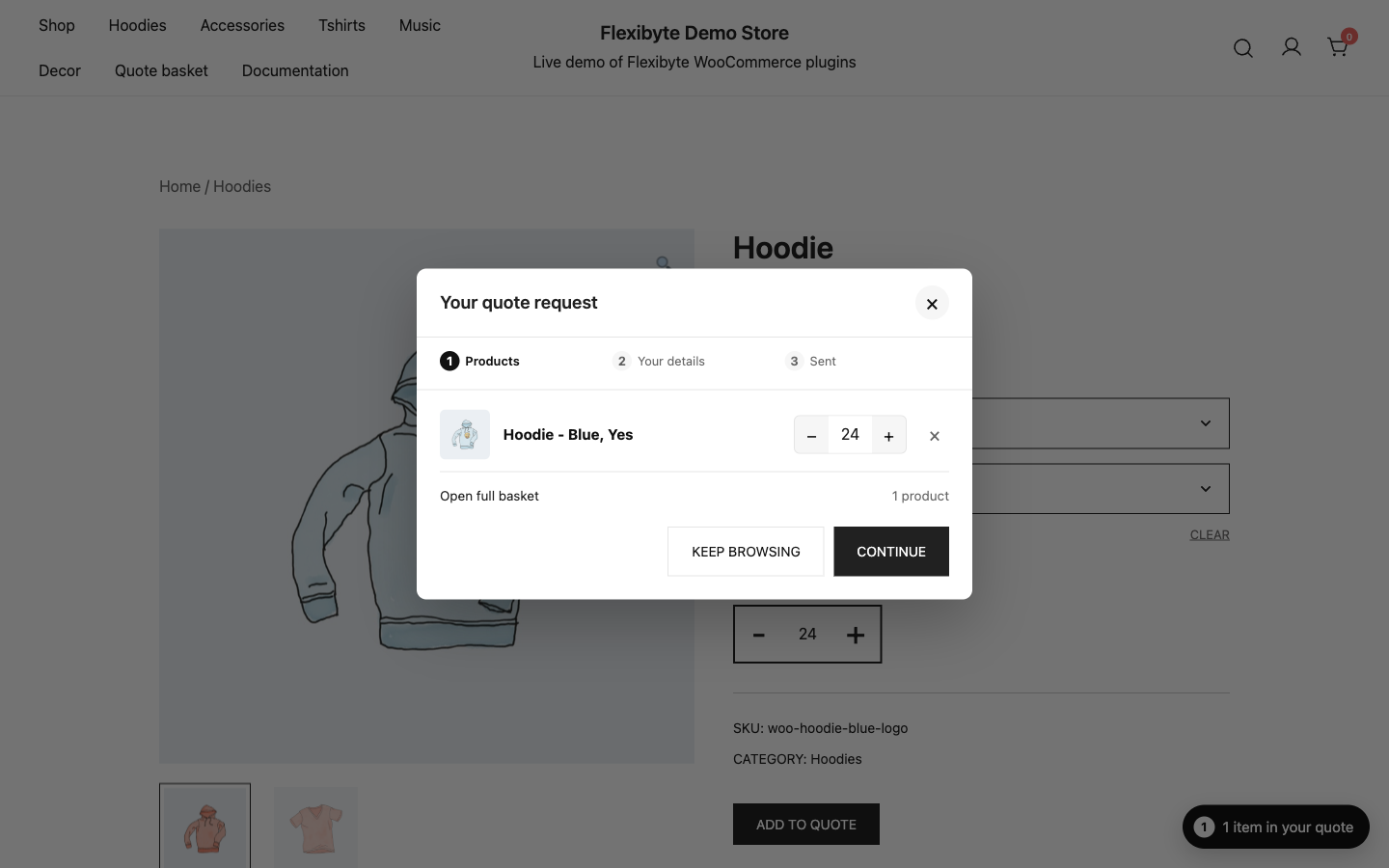
Quote popup
When a product is added to the quote, a popup can open so the customer can send the request without leaving the page. See Quote popup.
Enquiry form
A short form for one product, shown in an Enquiry tab on the product page, in a popup, or anywhere with the [flexcm_enquiry_form] shortcode. Enquiries are saved as quotes, so they appear in the same inbox.
Request a quote from the cart
Under Settings → Cart and checkout, tick Use the cart as an enquiry cart. The checkout button is replaced with Request a quote, and the cart contents become a quote request. Leave Remove Add to cart off so customers can fill the cart first.
Quotes inbox
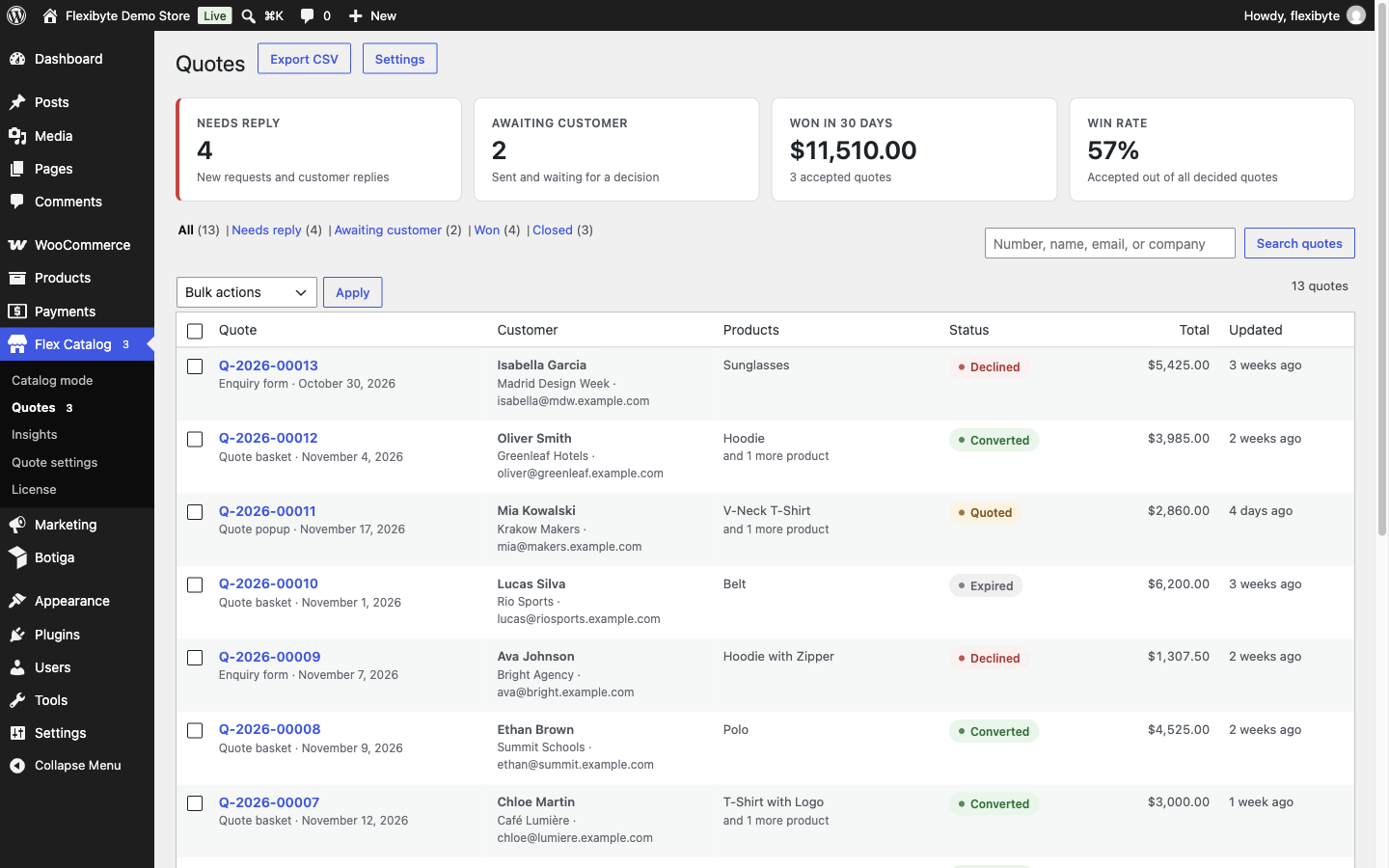
Go to Flex Catalog → Quotes. Tabs keep the work organised:
| Tab | Shows |
|---|---|
| All | Every quote. |
| Needs reply | New requests, quotes in review, and customers who asked for changes. |
| Awaiting customer | Quotes you have sent that the customer has not answered yet. |
| Won | Accepted and converted quotes. |
| Closed | Declined, expired and cancelled quotes. |
Search by quote number, name, email or company. Select several quotes to mark them as in review, decline them or cancel them. Export CSV downloads your quotes for a spreadsheet.
Team members need the flexcm_manage_quotes capability to use the inbox. Administrators and shop managers have it by default.
Preparing a quote
Open a quote from the inbox to price it.
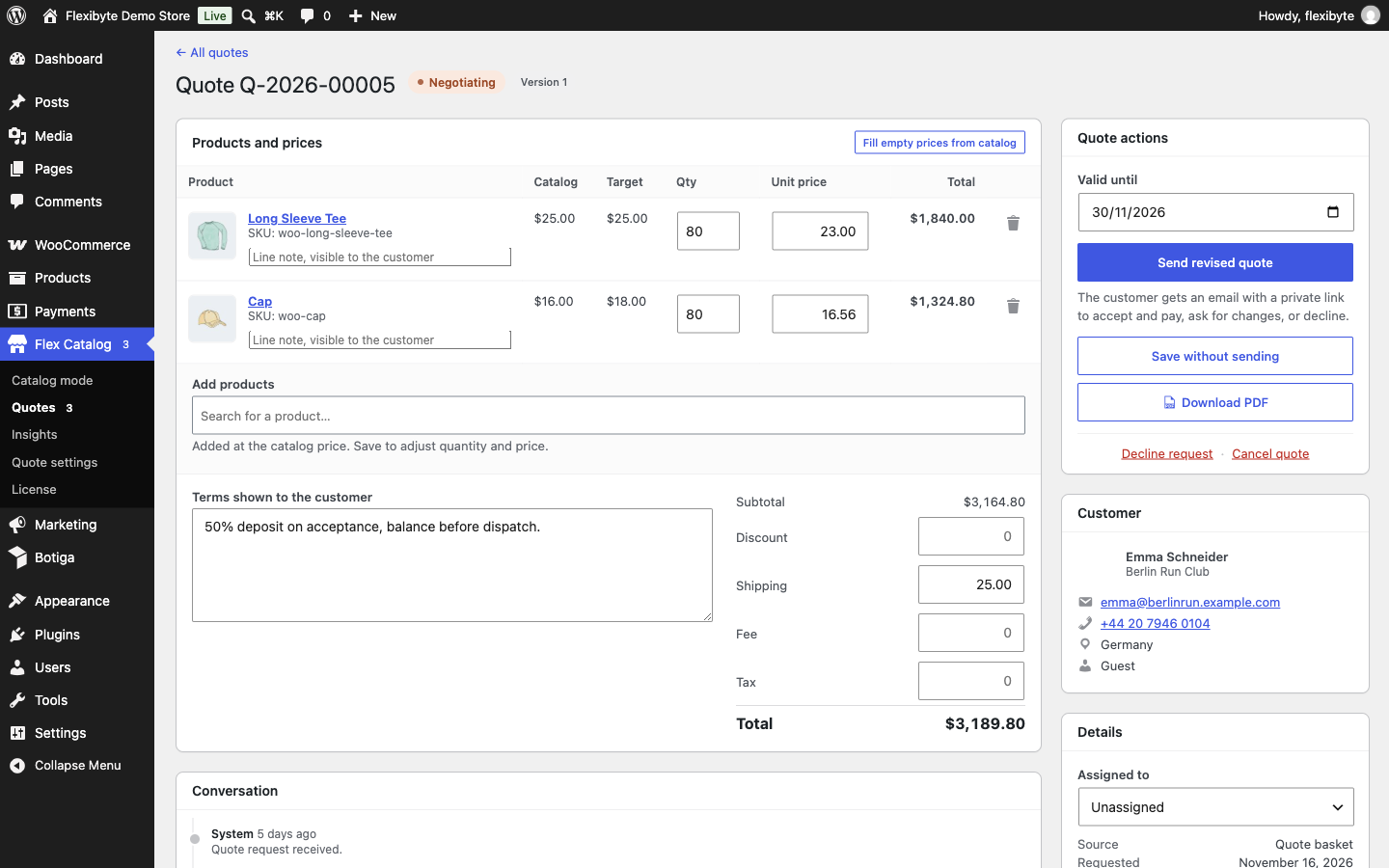
- Products and prices: change quantities and unit prices, add a note per line for the customer, remove lines, or search and add any product. Fill empty prices from catalog enters your normal prices to start from.
- Totals: add a discount, shipping, a fee and tax. Totals update as you type.
- Customer target prices are shown beside each line, so you can see what the customer hoped to pay.
- Valid until: defaults to your validity period, and can be changed per quote.
- Terms shown to the customer: payment terms, delivery time, warranty and so on. New quotes start with your default terms.
- Assigned to: the team member responsible. Staff emails for the quote go to them.
- Conversation: messages with the customer, emailed both ways. Private notes are only visible to your team.
- Request details: answers to your custom fields, with secure download links for uploaded files.
Click Send quote to customer to email it, or Save without sending to keep working. If you change a quote after sending it, Send revised quote creates a new version; the Version history keeps every previous version. Once a quote becomes an order or is closed, its prices are locked.
Under Quote settings → General → Pricing protection, set the lowest acceptable target as a percentage of the product's cost (or regular price). When a customer's target is lower, you can either accept the request and flag it as Below minimum margin, or ask the customer to change it before they send.
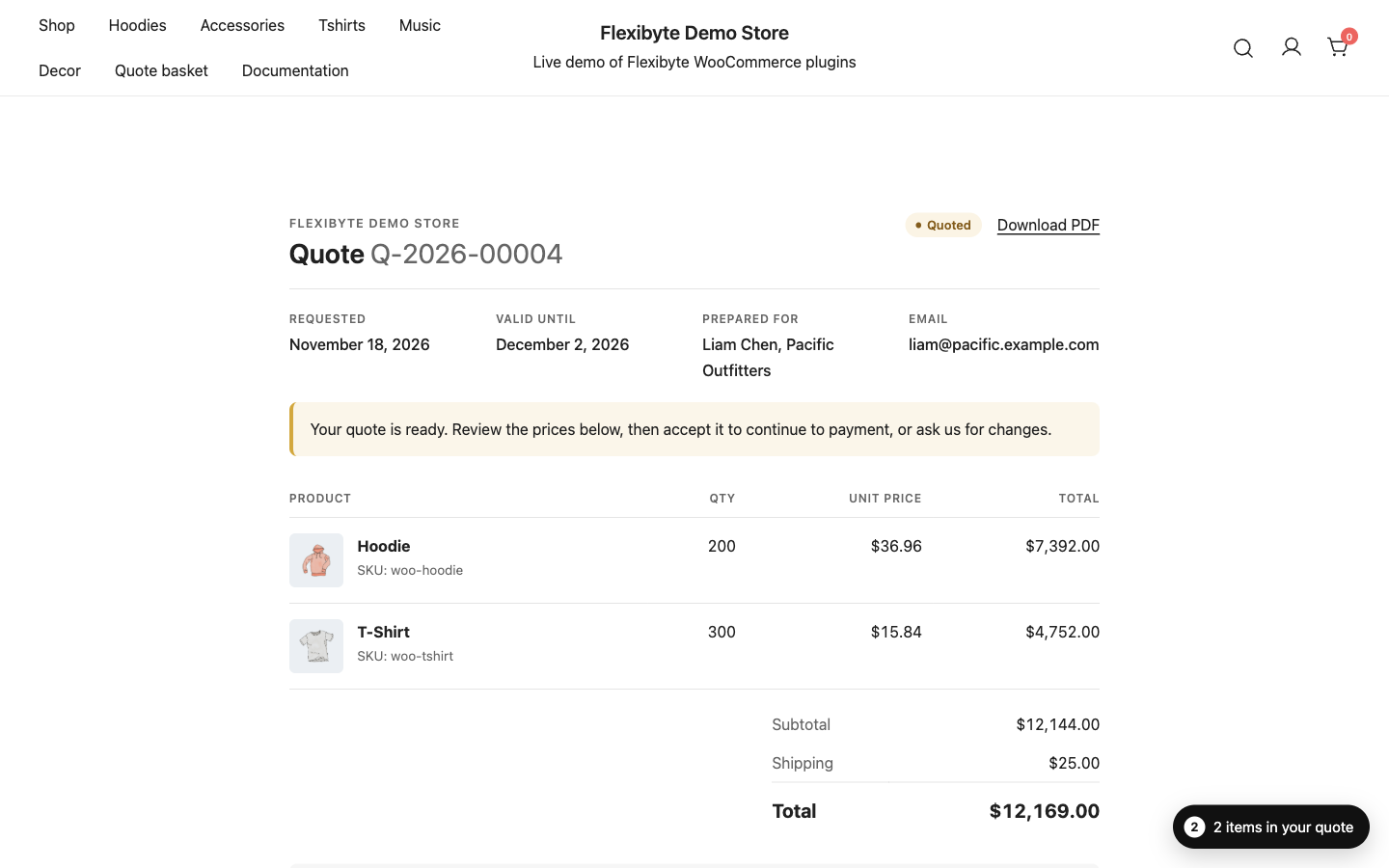
Customer quote page
Each quote has a private page, linked from the emails and from My Account → Quotes. The customer sees the lines, totals, validity date and terms, and can download the PDF. They can:
- Accept and pay: type their full name as a signature and tick the agreement box. A WooCommerce order is created at the quoted prices and they go straight to payment. If you set a deposit, only that percentage is due now.
- Request changes: send a message, such as different quantities or a counter-offer. The quote moves to Negotiating and you are notified.
- Decline: choose a reason (price too high, chose another supplier, delivery time, needs changed, or another reason) and add an optional message. Reasons are reported in Insights.
The quote email has Accept, Request changes and Decline buttons that open the quote page at the right step. The PDF can include clickable accept and decline links too.
Statuses
| Status | Meaning |
|---|---|
| New | The customer has sent a request. |
| In review | Someone on your team is working on it. |
| Quoted | You sent the quote; waiting for the customer. |
| Negotiating | The customer asked for changes. |
| Accepted | Marked as accepted by your team, for example after a phone call. |
| Declined | The customer declined, or you declined the request. |
| Expired | The validity date passed without an answer. |
| Converted | The customer accepted online and a WooCommerce order was created. |
| Cancelled | You closed the request. |
A daily task expires overdue quotes and sends reminders before expiry. Developers can add statuses with the flexcm_quote_statuses filter.
Quote settings
Go to Flex Catalog → Quote settings. There are four tabs: General, Form fields, PDF and Popup. The General tab has these sections:
| Section | Settings |
|---|---|
| Your business | Business name, the email address that receives quote requests, and the address printed on quotes. |
| Validity and reminders | How many days quotes are valid (default 14), and how many days before expiry to send a reminder (default 2; 0 turns reminders off). |
| Payment | Amount due on acceptance (a deposit percentage, or 100%), default terms, which payment gateways can be used for accepted quotes, and whether the billing address from the quote is locked on the order. |
| Pricing protection | The lowest acceptable target price, as a percentage of the product cost or the regular price, and what happens when a target is too low. |
| Notifications and routing | Addresses that receive a copy of staff emails, and assignment rules. |
| Integrations | Webhook, HubSpot, Mailchimp and Klaviyo. |
| Spam protection and performance | Turnstile or reCAPTCHA keys, the store notice shown while the cart is hidden, and the page cache mode. |
Assignment rules
New quotes can be assigned to a team member automatically. Rules are a JSON list, checked in order; the first match wins:
[
  { "country": "NG", "user_id": 2 },
  { "min_total": "5000", "user_id": 3 }
]
This sends quotes from Nigeria to user 2 and quotes worth 5,000 or more to user 3. Find a user's ID in the address bar when you edit them under Users.
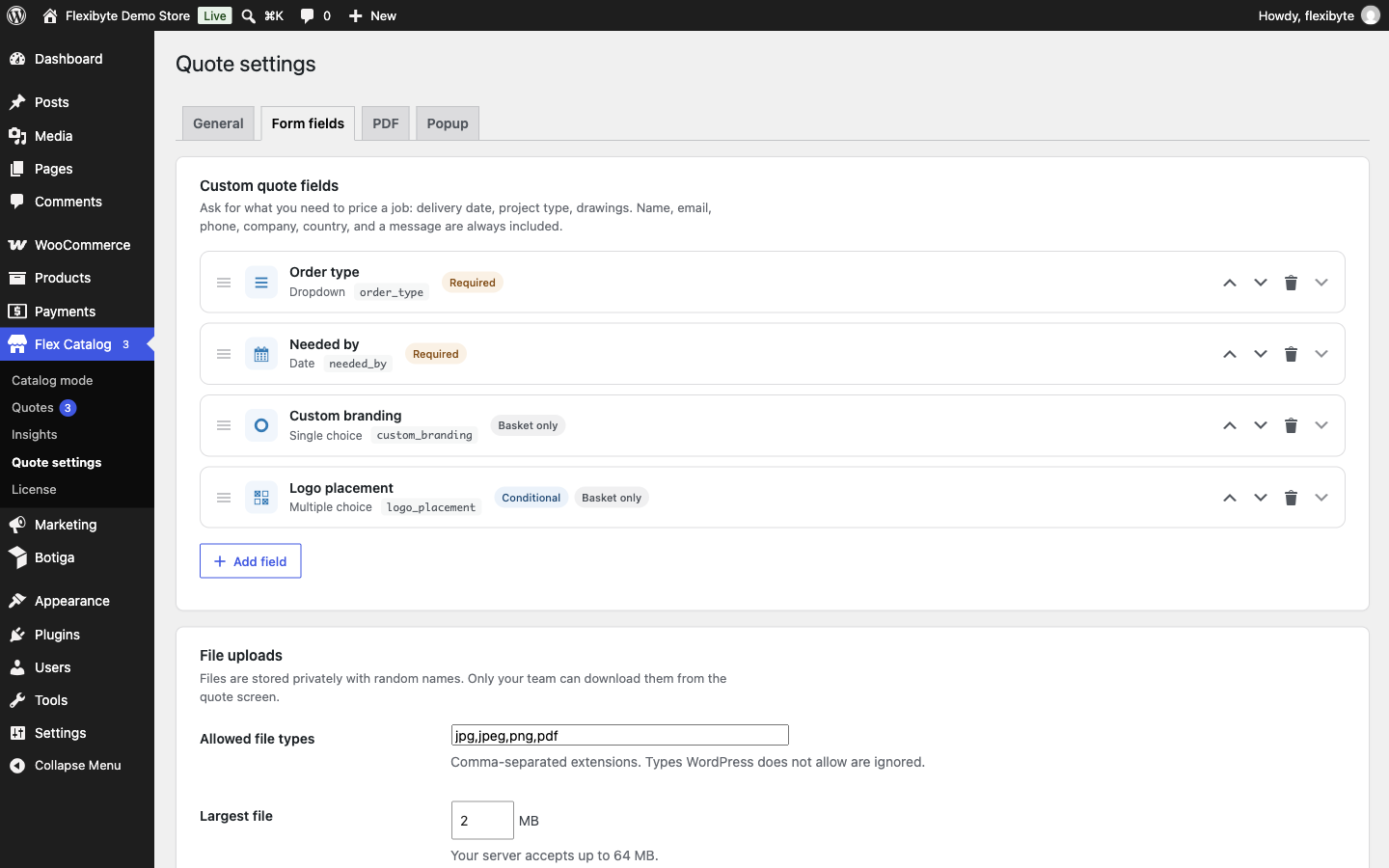
Form fields
The quote basket and popup always ask for name and email, plus optional phone, company, country and message. The enquiry form asks for name, email, phone, company, a message and a consent tick box.
Go to Quote settings → Form fields to add your own questions. For each field, choose:
- the question, answer type, placeholder and help text;
- where it appears: everywhere, the basket and popup only, or the enquiry form only;
- full or half width (two half-width fields sit side by side);
- whether it is required, and whether the answer is printed on the PDF;
- conditional logic: show it only when another field has a particular answer (or any answer). For example, ask for a delivery date only when “Delivery” is chosen.
| Answer type | Notes |
|---|---|
| Short text, Paragraph | Free text. |
| Email, Phone, Number, Date | Checked in the browser and on the server. |
| Dropdown, Single choice, Multiple choice | One choice per line. |
| Tick box | For example agreement to your terms. |
| File upload | Set the allowed file types and the largest file size (up to your server's limit). Files are stored privately with random names, and only your team can download them from the quote screen. |
Use Move up and Move down to change the order. Removing a field keeps the answers already saved on quotes.
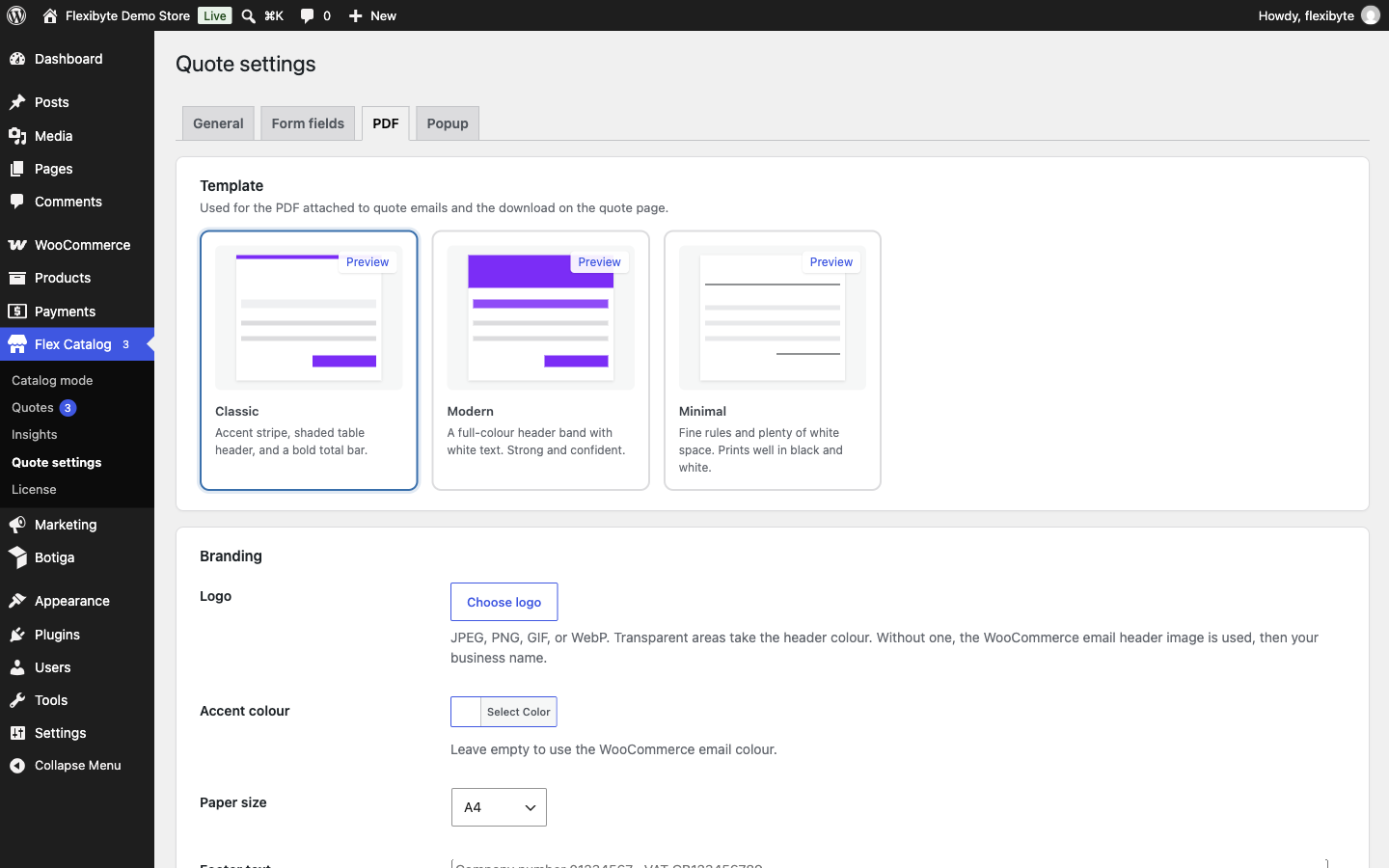
PDF quotes
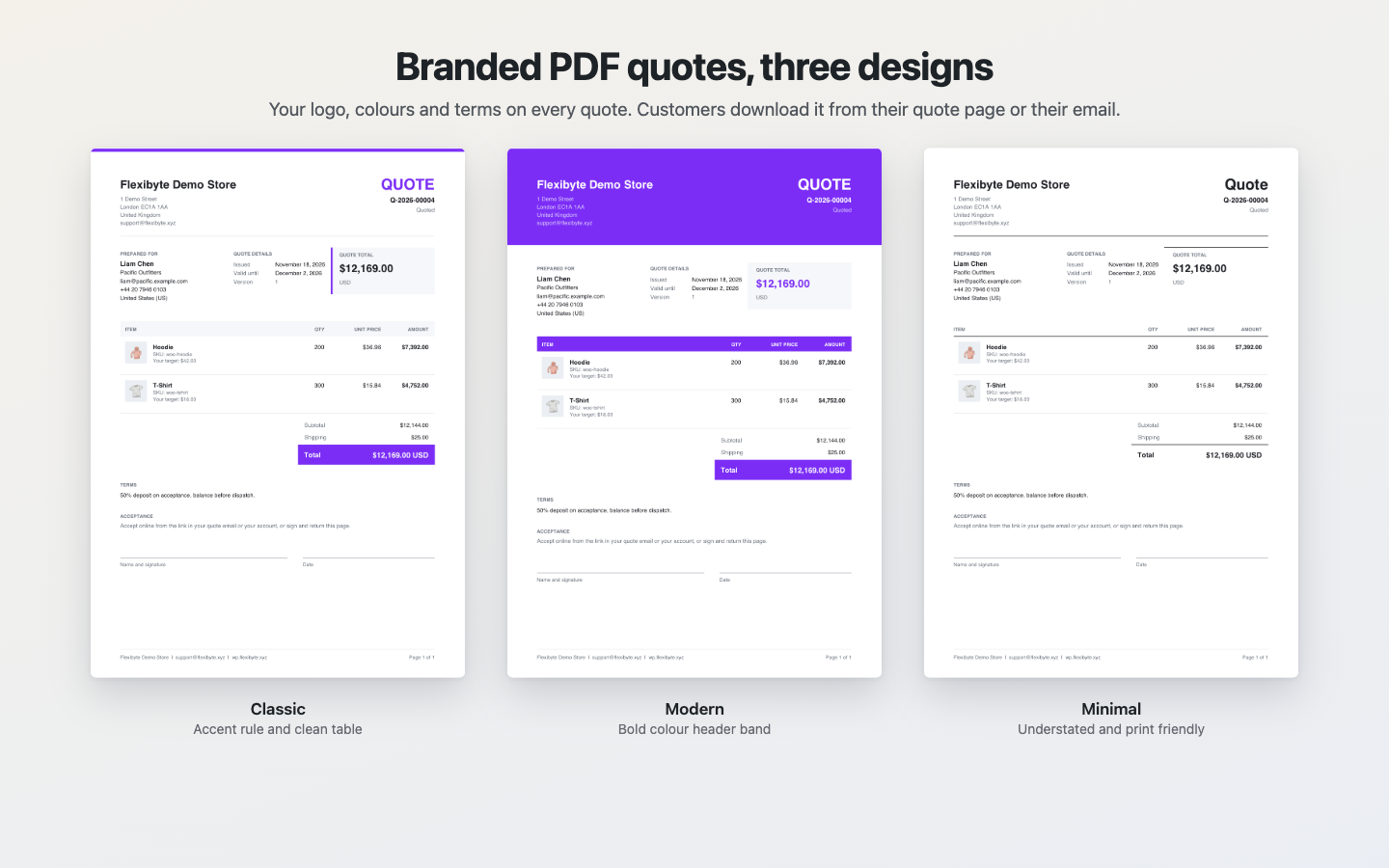
Go to Quote settings → PDF. Choose one of three designs: Classic, Modern or Minimal. Then set:
- your logo (JPEG, PNG, GIF or WebP; without one, the WooCommerce email header image is used, then your business name);
- an accent colour (or the WooCommerce email colour) and the paper size, A4 or US Letter;
- what to include: product images, SKUs, answers to your custom fields, and clickable accept and decline links;
- footer text, for example your company and VAT numbers.
Click Preview to see the design with sample data. The PDF is attached to the quote, reminder and acceptance emails, and customers can download it from their quote page. To turn PDFs off completely, untick Quote PDF download under Catalog mode → Settings → Feature switches.
Developers can replace the built-in PDF with their own, for example one made with a PDF library they already use, through the flexcm_pdf_binary filter.
Quote popup
Go to Quote settings → Popup and tick Use the quote popup on the storefront. With the popup on, Add to quote works without reloading the page.
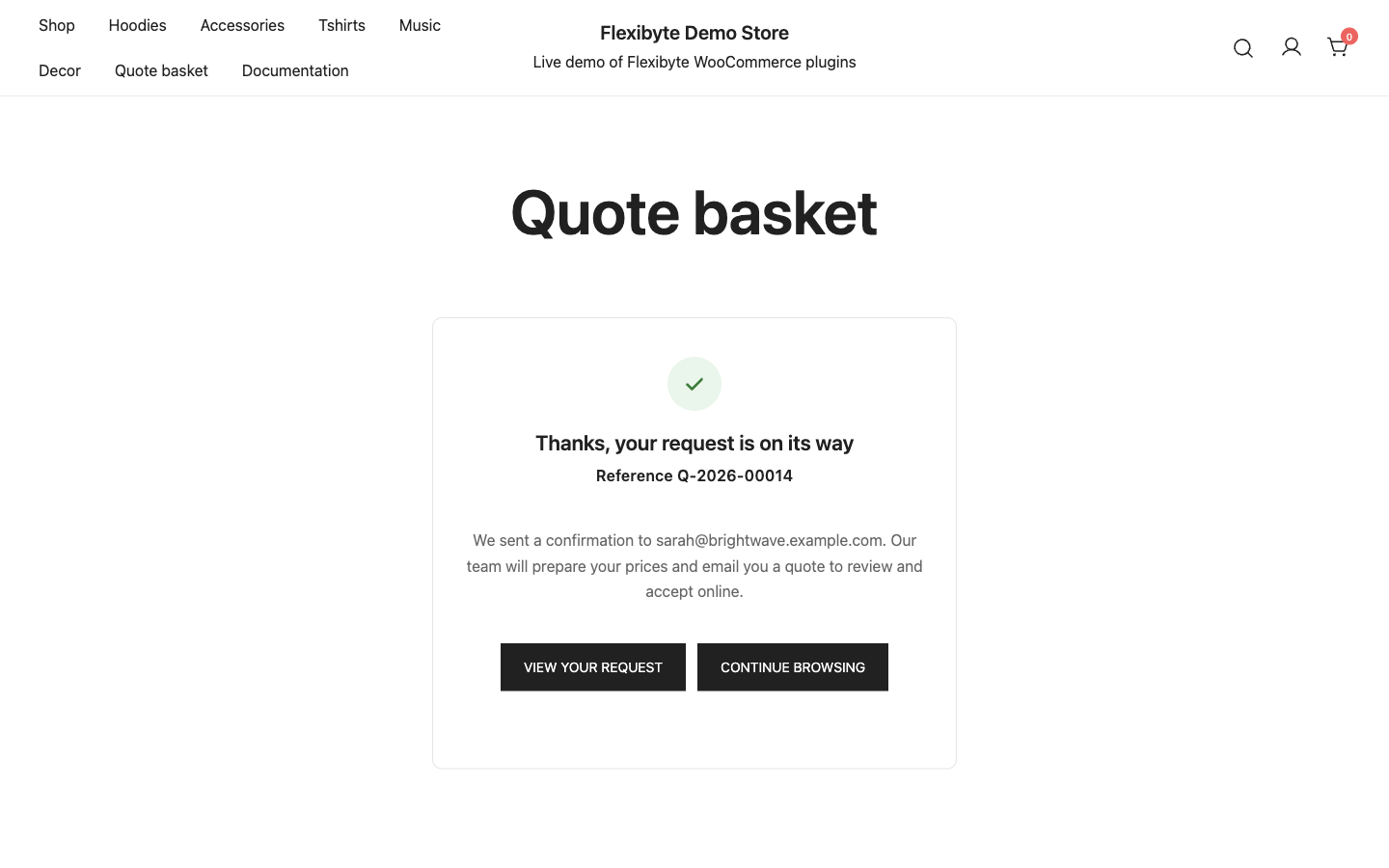
- Layout: Step by step shows the products first, then the customer's details, then a confirmation, like a short checkout. Single page shows the products and the form together, for short requests.
- Open the popup: after a product is added to the quote, or only when the floating quote button is clicked.
- Title and width (narrow, medium or wide).
Customers can change quantities and remove products inside the popup. The popup is not shown on the quote basket page itself.
Emails
Emails use the WooCommerce email template, so they match your store's branding from WooCommerce → Settings → Emails. Each email is sent in the language the customer used when they asked for the quote.
| Sent to | When | |
|---|---|---|
| New quote request | Your team | A customer sends a request. |
| Request received | Customer | Straight after they send a request. |
| Your quote is ready | Customer | You send or revise a quote. |
| Reminder | Customer | A set number of days before the quote expires. |
| Quote expired | Customer | The quote passes its validity date. |
| Quote accepted | Customer and your team | The customer accepts. |
| Quote declined | Your team | The customer declines, with their reason. |
| New message | Customer | Your team sends a message. |
| Customer replied | Your team | The customer sends a message or asks for changes. |
Staff emails go to the assigned team member, or to the quote inbox address, plus any copy addresses you set. Developers can change any email's text with the flexcm_email_body filter.
Insights
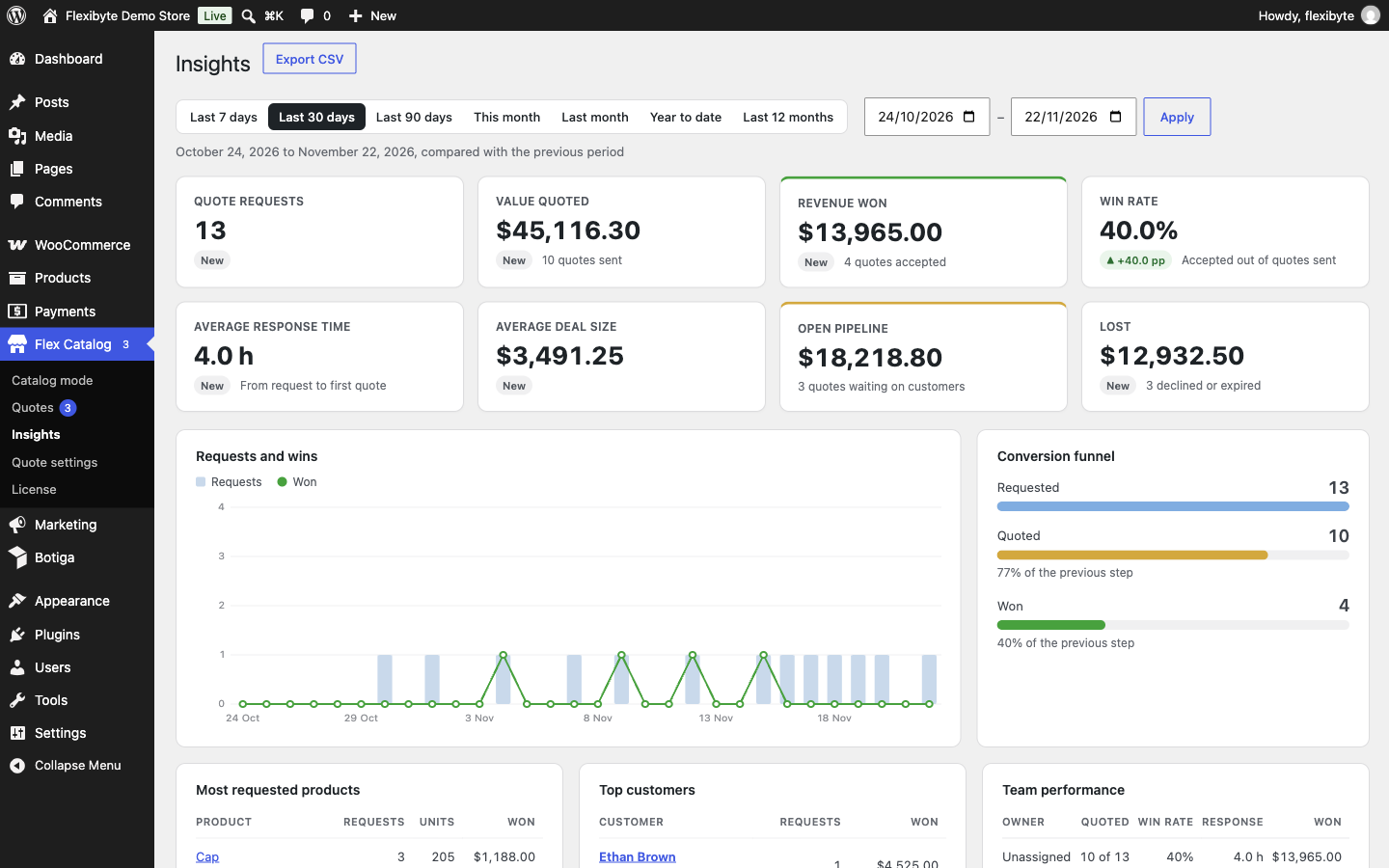
Go to Flex Catalog → Insights and pick a date range (last 7, 30 or 90 days, this or last month, year to date, last 12 months, or a custom range). Each figure is compared with the previous period of the same length.
- Key figures: quote requests, value quoted, revenue won, win rate, average response time (from request to first quote), average deal size, open pipeline and lost quotes.
- Requests and wins over time, and a conversion funnel from requested to quoted to won.
- Most requested products and top customers.
- Team performance: quotes, win rate, response time and revenue per team member.
- Why quotes are lost, countries, and where requests come from (quote basket, popup, enquiry form, cart or API).
Export CSV downloads the report.
Shortcodes, blocks and Elementor
| Shortcode | Block | Shows |
|---|---|---|
[flexcm_quote_button product="123"] | Quote button | An Add to quote button. On a product page you can leave out product. |
[flexcm_quote_basket] | Quote basket | The full quote basket with the request form. |
[flexcm_mini_basket] | Mini quote basket | A compact link with the number of items. |
[flexcm_enquiry_form product="123"] | Enquiry form | The enquiry form for one product. On a product page you can leave out product. |
[flexcm_my_quotes] | My quotes | The logged-in customer's quotes. |
The blocks are in the WooCommerce category of the block inserter, and can be used in the Site Editor in block theme templates.
With Elementor, drag the Flex Catalog widget onto the page and choose what it shows: the quote button, quote basket, enquiry form or mini basket. For the quote button and enquiry form, enter a Product ID, or leave it empty in a single product template to use the product being viewed.
The mini basket only appears once the customer has something in their quote.
Multilingual
The plugin is fully translatable. A translation template is included at languages/flex-catalog-mode.pot; use Loco Translate or Poedit to translate it, and save files as flex-catalog-mode-fr_FR.po / .mo and so on. Right-to-left languages are supported.
WPML and Polylang
- Texts you type in the settings (price text, button labels, popup title, PDF footer, form field labels and options) can be translated with WPML String Translation or Polylang's string translation, using the included
wpml-config.xml. In Polylang they are listed under Languages → Translations in the plugins/flex-catalog-mode group. - Texts typed into rules (price text, button label, email subject and body) are listed in the Flex Catalog Mode group, named after the rule, for example “Rule 3: button label”. They appear after you open any admin page once.
- Polylang translates by the text itself, so the same text used in two places shares one translation.
- Rules that pick products, categories or tags also apply to their translations. You only need to choose the original.
- The quote basket page is found in each language automatically. Translate it like any other page.
- Rules can target a language with the Language condition, if you prefer a separate rule per language.
- Each quote remembers the customer's language. Customer emails and the PDF use that language, even when your team works in another.
- With WPML, the per-product override is copied to translations.
Form plugins
If you prefer your own form plugin for enquiries, you can use Contact Form 7, Gravity Forms, WPForms, Ninja Forms or Formidable Forms. Paste the form's shortcode into Catalog mode → Settings → Enquiry popup → Form shortcode, for example [contact-form-7 id="20"].
- Each submission from the popup is also saved as a quote for the product whose button was clicked, so it appears in the inbox and in Insights. The same form on your contact page, or any other form, is not affected.
- The form needs an email field. Fields for the name, phone, company and message are recognised from their type or label (for example “Your name”, “Telephone”, “Company”, or a paragraph field). Everything else is kept on the quote as extra answers.
- The quote is saved even if your form plugin fails to send its own email.
- AJAX and non-AJAX forms both work. When a form reloads the page, the popup opens again to show its confirmation or error message.
Turn off its notification if you only want the Flex Catalog Mode emails.
Webhooks and CRM connectors
Set these under Quote settings → General → Integrations. Each connector only runs when its key is saved.
Webhook
A JSON event is posted to your URL when a quote is created, changes status, or gets a message. Use it with Zapier, Make, n8n or your own system.
| Event | When |
|---|---|
quote.created | A new request arrives. |
quote.converted | The customer accepts online and an order is created. |
quote.accepted | Your team marks the quote as accepted. |
quote.rejected | The quote is declined. |
quote.updated | Any other status change. |
message.created | A message is added to the conversation. |
The body is {"event": "...", "quote": { ... }}. The event name is also in the X-Flexcm-Event header. If you set a signing secret, the X-Flexcm-Signature header contains an HMAC-SHA256 of the raw body, so you can check the request came from your store:
$body     = file_get_contents( 'php://input' );
$expected = hash_hmac( 'sha256', $body, 'your-signing-secret' );

if ( ! hash_equals( $expected, $_SERVER['HTTP_X_FLEXCM_SIGNATURE'] ?? '' ) ) {
	http_response_code( 401 );
	exit;
}
HubSpot, Mailchimp and Klaviyo
| Service | What you need | What happens |
|---|---|---|
| HubSpot | A private app token with the crm.objects.contacts.write scope. | New customers are added as contacts with name, email, company and phone. Existing contacts are left as they are. |
| Mailchimp | An API key and the audience ID. | New customers are added to the audience. Choose how under New Mailchimp contacts: double opt-in (default; Mailchimp emails them a confirmation link), subscribe straight away (when you already have their permission), or contacts only (kept in the audience without marketing permission). Existing members keep their status. |
| Klaviyo | A private API key with events write access. | Each quote event (quote.created, quote.accepted and so on) is recorded on the customer's profile, for flows and segments. |
HubSpot and Mailchimp receive the customer when a quote request arrives. Klaviyo receives every quote event. Quote emails to customers are always sent by your store, so none of these services is needed to reply to a quote.
Spam protection
Every quote form (the basket, the popup and the enquiry form) is protected by a hidden honeypot field, a check that rejects forms sent within 3 seconds of loading, and a limit of 8 requests per hour from one address.
For stronger protection, add a CAPTCHA under Quote settings → General → Spam protection and performance. Enter both the site key and the secret key for one service:
- Cloudflare Turnstile (recommended; free, private and usually invisible). Create a widget at dash.cloudflare.com and add your domain.
- Google reCAPTCHA v2, the “I'm not a robot” checkbox. Create keys at google.com/recaptcha/admin. Score-based v3 keys do not work.
The check appears just above the send button on every quote form. Its script only loads on pages that show a quote form. If both services are filled in, Turnstile is used.
Page caching
When different visitors can see different prices, a full-page cache must not show one visitor's page to another. Choose a mode under Quote settings → General → Page cache:
- Do not cache pages that differ by visitor (default, safest). When your settings or rules depend on who is visiting, where they are or the date, store pages are marked as not cacheable. WP Rocket, W3 Total Cache, WP Super Cache, LiteSpeed Cache and most host caches respect this. Store-wide catalogs that look the same for everyone are still cached.
- Allow caching. Pages are cached as normal. Ideal when your rules depend on being logged in or on user roles, because cache plugins already serve logged-in visitors fresh pages. For rules based on country, currency or a schedule, keep the default mode.
Exclude the quote basket page from your cache. Most cache plugins already exclude My Account, the cart and checkout.
Third-party services
Flex Catalog Mode does not track you or your customers, and sends nothing anywhere unless listed below. Mention the services you turn on in your privacy policy.
| Service | When it is contacted | Data sent | Terms and privacy |
|---|---|---|---|
Flexibyte license server (flexibyte.xyz) | When you activate or deactivate a license, and about twice a day to check for updates. | Purchase code (on activation only), site address, plugin, WordPress and PHP versions. No customer or order data. | We keep the site address, buyer name and license details to manage activations. Open a ticket to have them removed. |
| Envato API | Indirectly: the license server checks your purchase code with Envato on activation. | Purchase code. | envato.com/privacy |
| Cloudflare Turnstile | Only when you add Turnstile keys: the widget loads on quote forms, and each request is verified. | The visitor's browser data as described by Cloudflare, and the verification token. | Turnstile privacy |
| Google reCAPTCHA | Only when you add reCAPTCHA keys. | As described by Google, and the verification token. | Google privacy |
| HubSpot | Only with a token saved, on quote events. | Customer name, email, company and phone. | HubSpot privacy |
| Mailchimp | Only with a key saved, on quote events. | Customer name and email. | Intuit Mailchimp privacy |
| Klaviyo | Only with a key saved, on quote events. | Customer email and the quote details. | Klaviyo privacy |
| Your webhook URL | Only with a URL saved, on quote events. | The full quote, including customer details. | Your own service. |
Hooks
Add code like the examples below to a small custom plugin or your child theme's functions.php. In the arguments, $decision is the outcome of the rules for this product and visitor, and $visitor describes the visitor (role, country, language and so on).
Filters
| Filter | Arguments | Use it to |
|---|---|---|
flexcm_rule_matches | $matches, $rule, $product, $visitor | Add your own condition to any rule. |
flexcm_hide_price | $hide, $product, $decision | Force a price to show or hide. |
flexcm_is_purchasable | $purchasable, $product, $decision | Change whether a product can be bought. |
flexcm_button_args | $args, $product, $decision | Change the button label, link, classes or icon. |
flexcm_visitor_context | $visitor | Change how the visitor is detected, for example use your own geolocation. |
flexcm_feed_product_hidden | $hidden, $product, $decision | Keep a product in or out of product feeds. |
flexcm_feed_visitor | $visitor | Evaluate feeds as a different visitor than a guest. |
flexcm_quote_statuses | $statuses | Add quote statuses. |
flexcm_quote_transitions | $allowed, $from, $to | Allow or block a status change. |
flexcm_email_body | $body, $event, $quote | Change the text of an email. |
flexcm_email_attach_pdf | $attach, $event, $quote | Attach the PDF to more or fewer emails. |
flexcm_pdf_binary | $binary, $quote | Replace the PDF with your own. Must return PDF data starting with %PDF. |
flexcm_update_server | $url | Point update checks somewhere else (agencies with a mirror). |
Actions
| Action | Arguments | Fires when |
|---|---|---|
flexcm_quote_created | $id, $quote | A quote request is saved. |
flexcm_quote_status_changed | $id, $from, $to | A quote changes status. |
flexcm_quote_revised | $id, $quote, $old_version | A sent quote is revised. |
flexcm_quote_message | $id, $body | A message is added to the conversation. |
Examples
Show prices to visitors arriving from a partner link:
add_filter( 'flexcm_hide_price', function ( $hide, $product, $decision ) {
	if ( isset( $_COOKIE['partner'] ) ) {
		return false;
	}
	return $hide;
}, 10, 3 );
Send won quotes to Slack:
add_action( 'flexcm_quote_status_changed', function ( $id, $from, $to ) {
	if ( 'accepted' !== $to ) {
		return;
	}
	wp_remote_post( 'https://hooks.slack.com/services/XXX', array(
		'body' => wp_json_encode( array( 'text' => "Quote #$id was accepted." ) ),
	) );
}, 10, 3 );
Add a “Trade members only” rule condition based on a user meta field:
add_filter( 'flexcm_rule_matches', function ( $matches, $rule, $product, $visitor ) {
	if ( $matches && is_user_logged_in() ) {
		return '1' === get_user_meta( get_current_user_id(), 'trade_member', true ) ? false : $matches;
	}
	return $matches;
}, 10, 4 );
Template overrides
Copy a template from wp-content/plugins/flex-catalog-mode/templates/ to wp-content/themes/your-theme/flex-catalog-mode/ and edit the copy. Your version is used instead, and survives plugin updates.
| Template | Controls |
|---|---|
button.php | The catalog button that replaces Add to cart. |
Most visual changes are easier with CSS. Every element uses a flexcm- class, and colours come from CSS custom properties such as --flexcm-accent.
REST API
Routes are under /wp-json/flexcm/v1. Authenticate with an application password for a user with the flexcm_manage_quotes capability.
| Route | Method | Description |
|---|---|---|
/quotes | GET | List quotes. Parameters: status, search, page (20 per page). |
/quotes | POST | Create a quote request. Fields: name, email, phone, company, country, and lines (a list of product_id, variation_id, qty, note). Returns {"id": 123} with status 201. |
/fragments | POST | Public. Returns whether the price is hidden, and the replacement text, for a list of products IDs for the current visitor. Useful for headless or custom front ends. |
curl -X POST https://shop.example/wp-json/flexcm/v1/quotes \
  -u "api-user:xxxx xxxx xxxx xxxx xxxx xxxx" \
  -H "Content-Type: application/json" \
  -d '{"name":"Ada Lovelace","email":"ada@example.com","lines":[{"product_id":42,"qty":"10"}]}'
WP-CLI
| Command | Description |
|---|---|
wp flexcm rules list | List rules: ID, status, priority and title. |
wp flexcm rules export | Print all rules as JSON, for backups. |
wp flexcm quotes list | List recent quotes: number, status and total. |
wp flexcm quotes expire | Expire overdue quotes and send due reminders now, instead of waiting for the daily task. |
wp flexcm shield | List each price protection hook and whether it is active. |
Data and uninstall
The plugin stores:
- settings in a few
flexcm_options; - rules, quotes, quote lines, messages, versions and events in their own database tables, such as
wp_flexcm_rulesandwp_flexcm_quotes; - the per-product override in the
_flexcm_overrideproduct meta field; - files customers upload in
wp-content/uploads/flexcm-quotes/, under random names and protected from direct access.
Deactivating the plugin keeps everything. Deleting it releases the license and removes the update data. To remove everything (settings, rules, quotes, uploaded files, product overrides and the quote basket page), first tick Catalog mode → Settings → Data → Delete all data on uninstall, then delete the plugin. The Wholesale role is kept, so customers who have it are not affected.
Export your rules (wp flexcm rules export) and quotes (Export CSV in the inbox) first if you might need them.
FAQ and troubleshooting
Prices still show on my shop page.
Open Catalog mode → Shield and run the self-check. If everything passes, the page is probably cached: clear your cache plugin and any server or CDN cache, then check in a private window. Administrators see the normal shop when a rule targets guests; use View store as… to check.
Some themes still show an Add to cart button.
A few themes print their own button outside WooCommerce's normal hooks. Purchasing is still blocked on the server, so the button cannot add the product. To hide it, add the theme's button class to Settings → Custom code → Custom CSS, for example .my-theme-add-to-cart { display: none; }. If leftover price markup shows too, tick Hard remove for themes that ignore WooCommerce under Settings → Prices and purchasing. Contact support if you need help.
Can wholesale customers see prices while everyone else sees a catalog?
Yes. Run the wizard and choose Wholesale / B2B, then give approved customers the Wholesale role under Users.
Can I hide prices only in some countries?
Yes. Create a rule with the Country condition. Enable geolocation under WooCommerce → Settings → General → Default customer location so guests are located too.
Quote emails are not arriving.
WordPress's default mail is often blocked by hosts. Install an SMTP plugin such as WP Mail SMTP or FluentSMTP and send a test email. Check the quote inbox address under Quote settings → General.
The customer's accept link says the quote is not available.
The quote has expired or was already accepted or declined. Change the validity date on the quote and send it again.
“The package could not be installed.”
Upload flex-catalog-mode.zip from inside the CodeCanyon download, not the download itself.
Updates say the license is not active.
Go to Flex Catalog → License. If the site address changed, activate again. If activation fails, the message explains why (for example, the code is in use on another live site).
Does it work with my page builder or theme?
The plugin uses WooCommerce's standard functions and filters, so it works with themes and builders that do too, including block themes. See Tested with for the themes and plugins it has been tested with. If something looks wrong with yours, open a ticket with the theme name.
Support
Support is included for six months with your purchase and can be extended on CodeCanyon.
- Open a ticket at flexibyte.ticksy.com. You can also find this link under the plugin's description on the Plugins screen (Get support).
- Include your purchase code, your site address, and a description or screenshot of the problem.
- Copy the system report from WooCommerce → Status → Get system report and paste it into your message. It saves a lot of back and forth.
We aim to reply within one business day, Monday to Friday. Support covers using the plugin and fixing bugs; custom development is not included, but we are happy to quote for it.
Changelog
1.0.0 · November 2026
- First release.
Credits and licence
Flex Catalog Mode is developed by Flexibyte. It contains no third-party libraries; the PDF writer, rule engine and all scripts are our own code. Icons in the admin use WordPress Dashicons.
The PHP code and integrated HTML are licensed under the GNU General Public License v2 or later, like WordPress. The CSS, JavaScript and images are licensed under your Envato Market license (Regular or Extended).
WooCommerce is a trademark of Automattic Inc. WordPress is a trademark of the WordPress Foundation. Other trademarks belong to their owners.